- Support home
- Usages
- Basic usage and user settings
- Organization management
- Buy with requests
- Sell to requests
- Banban Board
- Banban Board Tutorial — Basics
- Banban Board Tutorial — Calculation
- Messages
- Video meeting
- Shared files
- OneShot Demo Video Recorder
- Appearance and branding
- Ban list
- Common
- FAQ
- Limitations and issues
- H-Market model
- Supported browsers
- Contact
- Subscribe to news updates
- Free and options
- Paid options
- Land domain names
- Sellers
- Banban Board
- Paid options
- Promotion materials
- Identity verification
- Legal
- Terms
- Privacy policy
- Logging setting
- SCT
- Content Creation Guidelines
High-end 4K quality video meetings
When you receive a video meeting link
Open the link. Press the “Join” button to enter the video meeting.
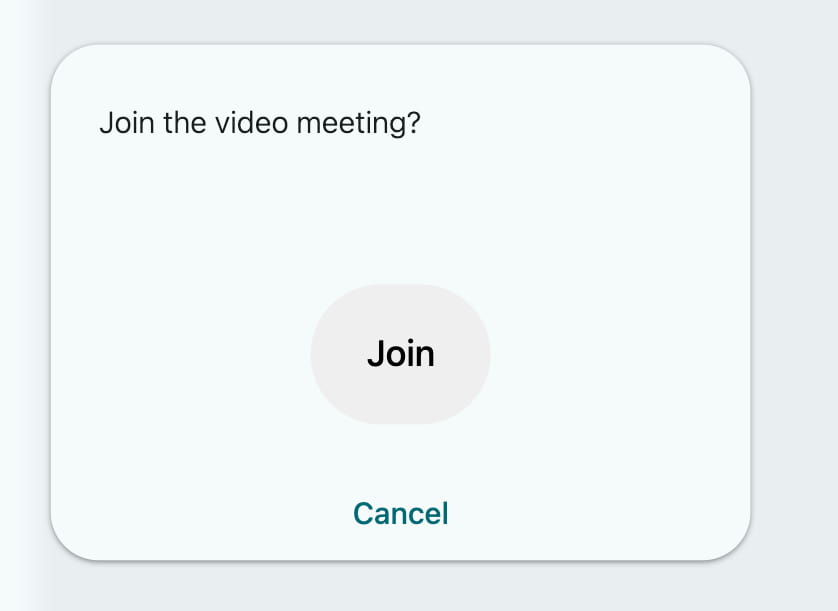
To leave the meeting, tap the screen and press “Leave” shown at the top right. Even if you leave once, you can rejoin again.
Usage
Start or join
Press the video meeting button in menu the project menu or a message session to enter the video meeting preparation screen.
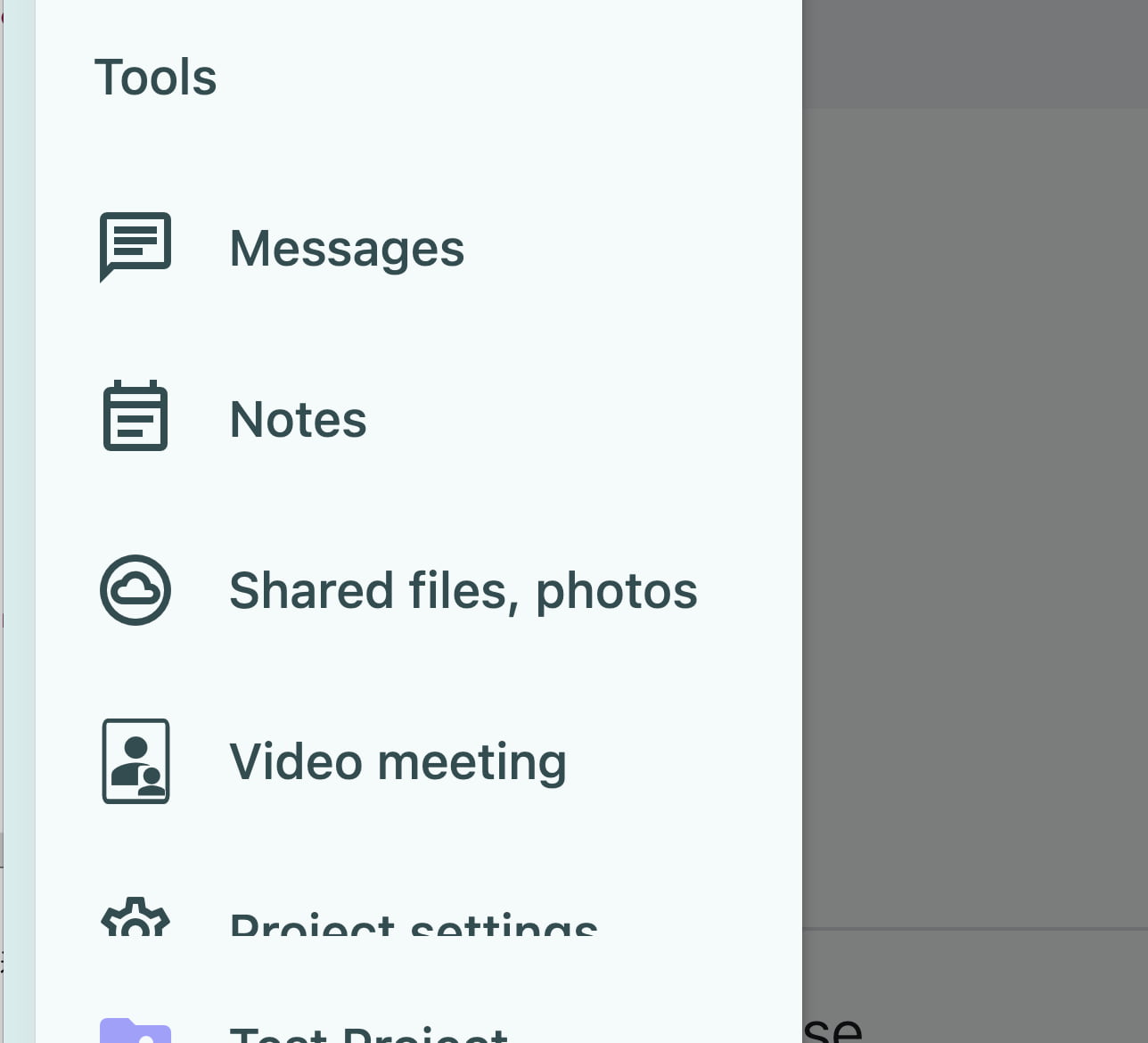 Video meeting in the project menu
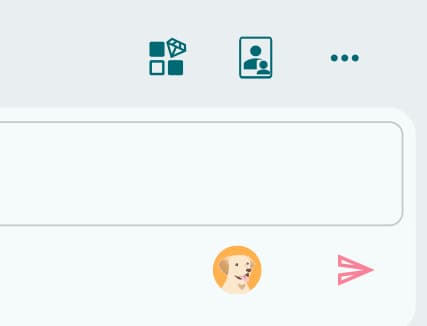 Video meeting in a message session
You can see the title of the message session that contains this video meeting. If it’s not the right one, select another message session.
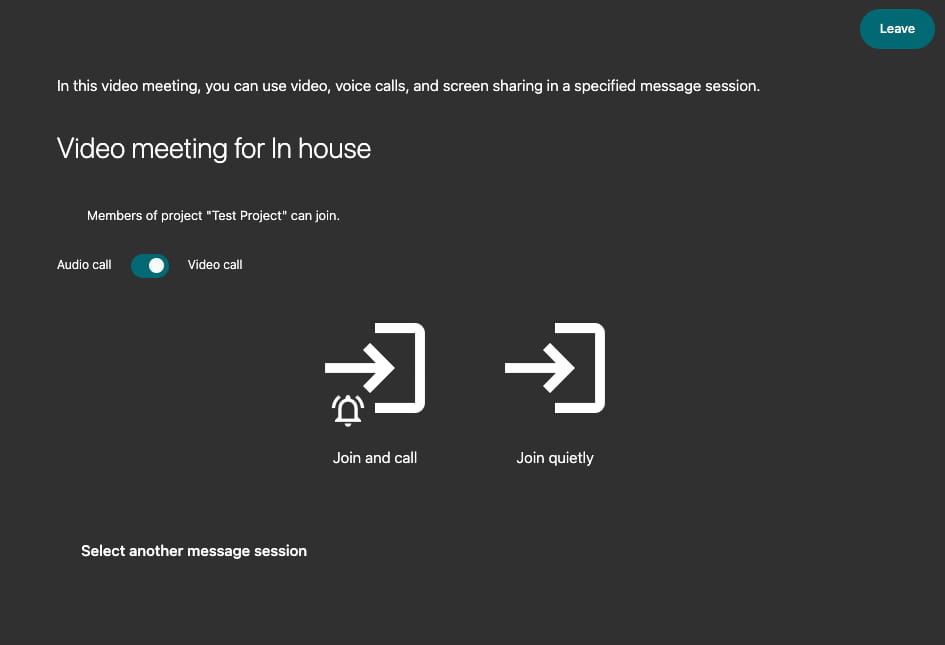
Press "Start and Call" to start a video meeting. Users who are set up to receive notifications for the current project will hear a notification or ring (available when Requestland is up) on their devices. If the meeting has already started, you will join without ringing.
Press "Join quietly" to join without playing a notification sound. If the meeting has not started, it will start.
Regardless of notification settings, any user in your organization can join. When a user joins, a message saying “XXX joined. Land ID” will appear. On the other hand, when someone joins through a link, the message “Guest joined” will be shown.
Each user who joins will have their picture and name displayed. If you tap on the background, you'll also see "Direct" or "Via server" under their name.
Change Settings
When you tap the screen during a video meeting, buttons such as the leave button, the settings menu, and the buttons for grid view grid_view and spotlight view person_search will appear.
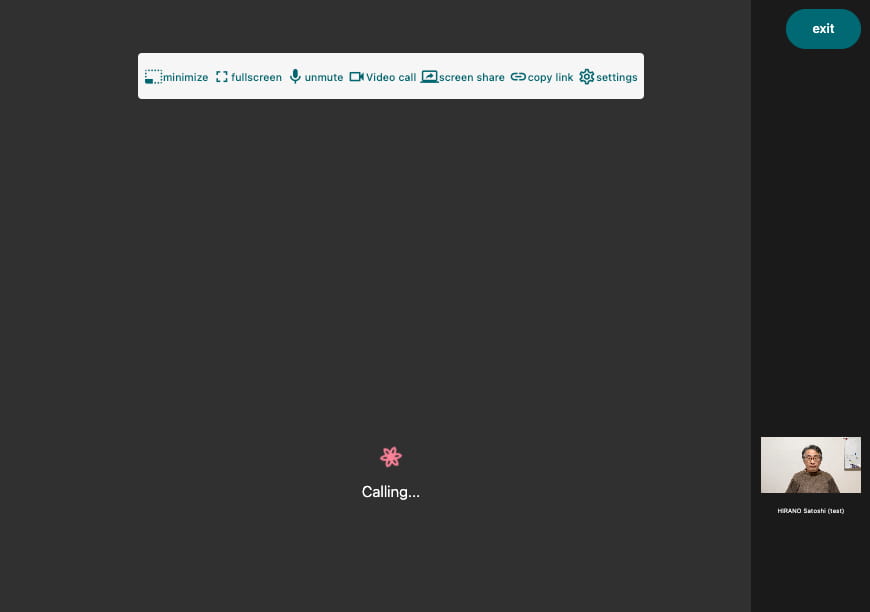
In the settings menu, you can change video quality and share your screen.
In grid view, tapping a person switches to spotlight view for that person.
To send messages or use Banban Board during the meeting, press the minimize button photo_size_select_small in the settings menu to switch your friend’s video into a thumbnail view.
Alternatively, if you open the Banban Board in the Subview, you can see the Banban Board and the other person's face and screen sharing at the same time.
After a certain period of time, these buttons will disappear.
Share your screen
Tap the screen to open the settings menu, tap screen_share Share Screen, and select what you want to share. On other participants’ devices, the shared screen is automatically shown in Spotlight view.
On Chrome and Edge on a PC, you can share a tab, a window, or your entire screen. When sharing a tab, the shared view will scroll along with the page if you scroll. Please click once before you start scrolling. This does not apply to window or full-screen sharing. Also, clicks will not be passed through to the shared screen.
On Safari on a computer, you can share a window or your entire screen. You can also send your face using Presenter Overlay while sharing your screen.
This feature is not available on smartphones.
To stop sharing, tap stop_screen_share Stop Sharing, or stop sharing from your browser.
Recording
You can record on a PC. On smartphones, please use the device’s built-in recording feature.
Beforehand, launch the OneShot Video Recorder from the user menu and close the dialog. Press the round record button at the top-left of the screen to start recording. Press the same button again to stop. The file will be automatically downloaded to your device. See How to use OneShot Video Recorder for details.
Selfie-wipe, click effects, and emoji cursors are not sent to the other participants. Turn them off before you start recording.
On Safari for PC, screen sharing works on a per-window basis and you cannot share a tab. While sharing your screen, you can send your face using “Presenter Overlay.”
You can also open OneShot in another window, overlay selfie-wipe or click effects onto your presentation there, and share that window in the video meeting. This will send the effects to the other participants. Note that video quality will be reduced and the cursor will appear doubled.
The other person’s audio and your own audio are mixed at a 1:1 ratio. You can adjust the balance using the microphone settings in the OneShot dialog.
The maximum recording time depends on your device’s available memory. The file size limit is 2 GB.
Display a Script
On Chrome or Edge for PC, you can turn the subview into a floating window that displays your notes or Banban Board. Place it near your camera so you can read your script while maintaining eye contact with the other person.
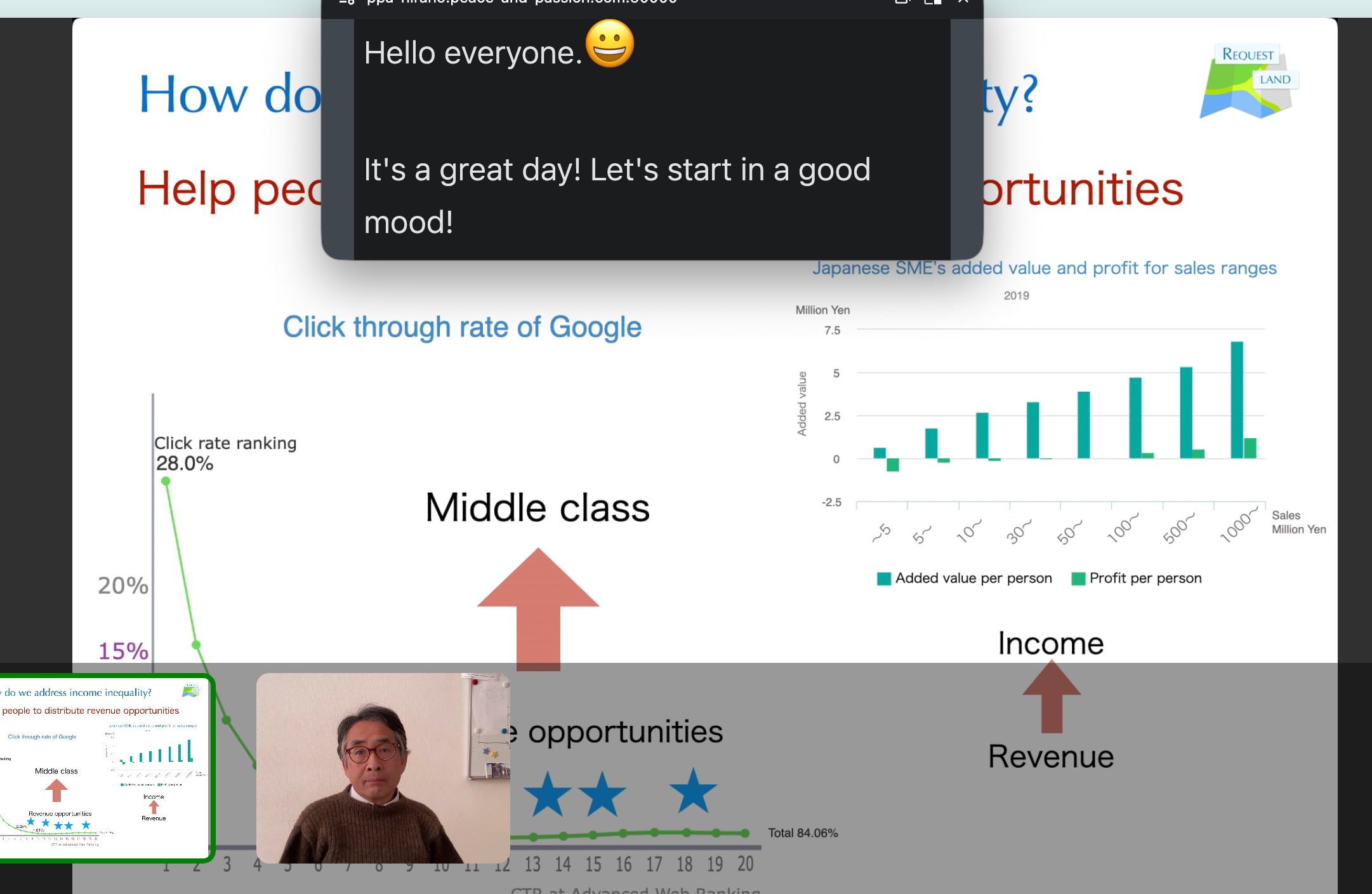
A floating subview splits the Requestland screen and displays the subview on top. It always stays in the frontmost position.
To open a subview, press the silver handle drag_handle on the right or bottom of the Requestland screen. Press the branding_watermark button to make it float. Open your script note or Banban Board and adjust its size and position.
You can also display your script from Script viewer in OneShot Video Recorder.
When switching the video meeting to full screen, use the window’s full-screen button. If you use the full-screen button in the settings menu, the floating subview will no longer be visible.
On other browsers, you can split the screen with a subview to display your notes or Banban Board side-by-side with the video meeting.
Floating subviews are experimental and have several known issues. For example, if you open and close a dialog inside the subview, scrolling may stop working. Reset the floating state or reload Requestland. Also, floating subviews are read-only.
Virtual Backgrounds
Please use your device’s camera virtual background feature. Center framing and eye-contact correction are supported.
On Windows, background blur is available through Windows Studio Effects.
On iOS and macOS, you can replace your background with an image. There are also fun effects — like hearts appearing when you make a heart sign.
On Android, some manufacturers (Samsung, Google Pixel, etc.) provide camera effects for background manipulation.
Leave
To leave the meeting, tap the screen and press “Leave” shown at the top right. Even if you leave once, you can rejoin again.
On smartphones, switching apps may cause the video meeting to end.
When high-resolution meetings are needed
For design reviews or discussions involving clothing or jewelry, Full HD (1920 x 1080) is often not enough to convey texture and detail. Higher resolutions such as 4K (3840 x 2160) or WQHD (2560 x 1440) are more suitable. To run a successful high-resolution meeting, a bit of preparation and rehearsal is necessary.
Requestland Video Meetings support 4K, and under good conditions on a local LAN, even 5K (5120 x 2880) or higher is possible. However, on mobile networks, even 5G, it is difficult to send smooth 4K video reliably. Try WQHD (2560 x 1440) as an alternative.
Keep the following points in mind for your meeting:
Is the other participant using a high-resolution device? If they are viewing on a small smartphone, they won’t be able to see the fine details. At the beginning of the meeting, encourage them to use a computer with a high resolution screen or an iPad so they can see the details clearly.
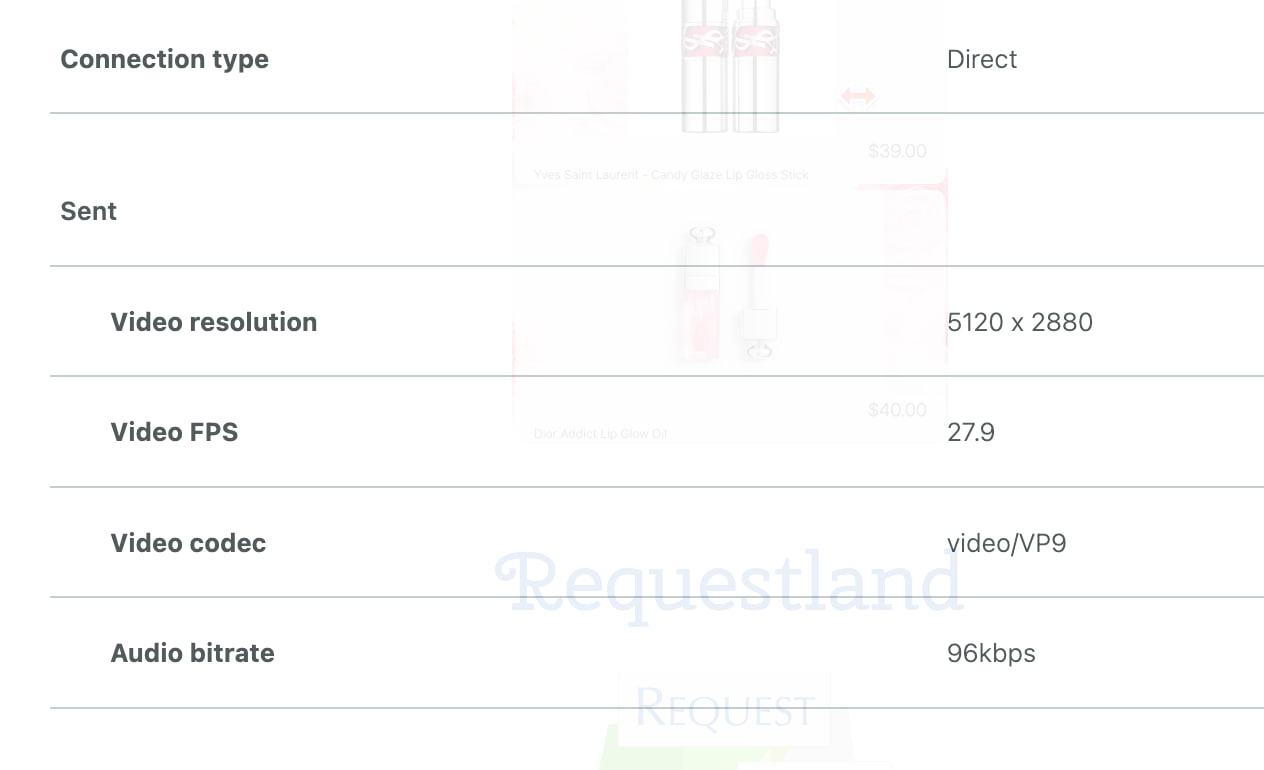
Before an important meeting where texture and detail matter, hold a video meeting with the customer in advance to learn what device they are using and to check the actual resolution and frame rate being sent. In the stats panel shown above, these are displayed as the video resolution and FPS. The maximum smoothness is around 29–30 FPS. When it drops to around 20 FPS, the video will start to feel choppy.
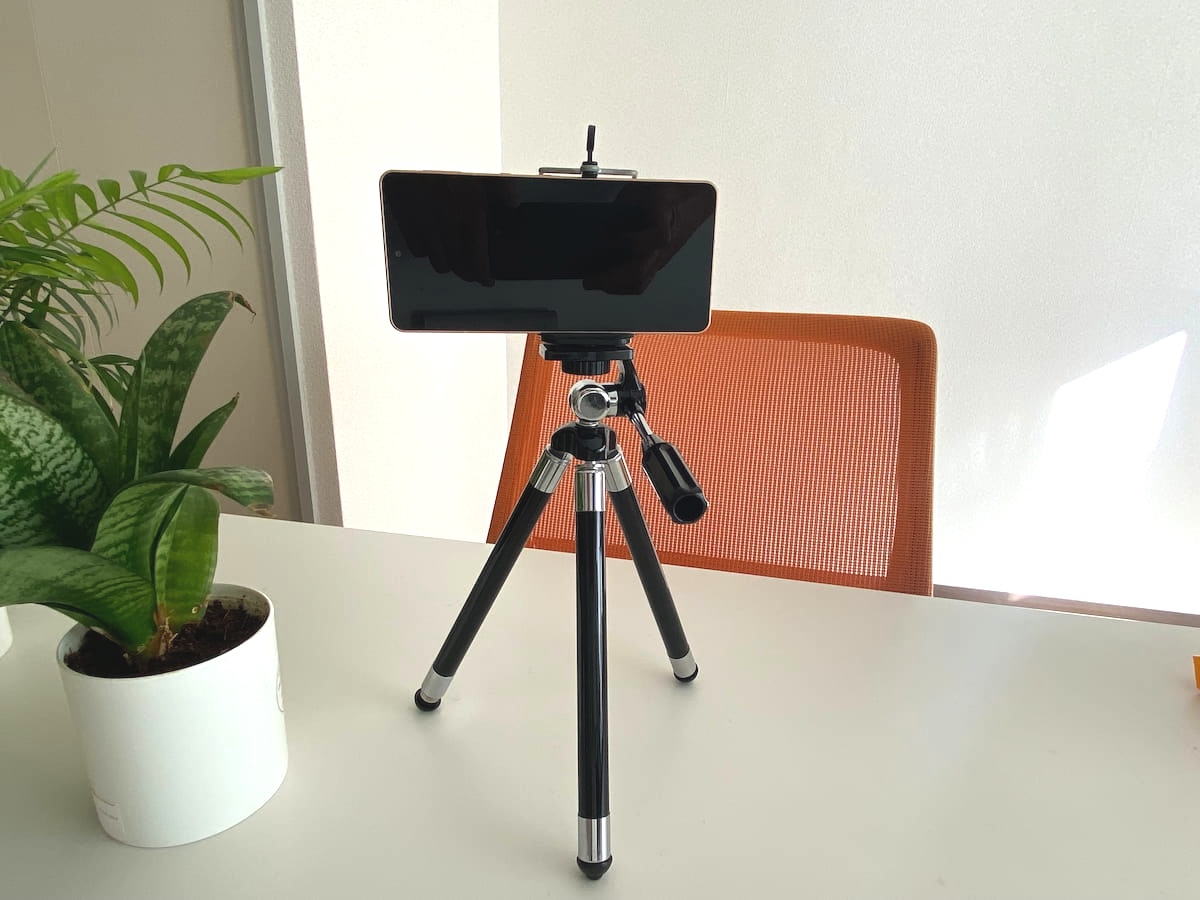
Is your camera fixed in place? Many smartphones have high-quality 4K cameras, but handheld shooting causes significant shaking. Use a tripod. The rear camera generally provides higher quality than the front camera.
Please clean the camera lens before shooting.
The customer does not need to send video at high resolution. That would only waste network bandwidth.
The maximum resolution you can send is limited by the following factors, and it will be automatically maximized within those limits:
- Your camera’s resolution
- The video you send cannot exceed your camera’s maximum resolution. For example, if your camera is Full HD, the maximum sent resolution will also be Full HD. Built-in laptop cameras usually support up to Full HD, and smartphone front cameras are often lower resolution than the rear cameras. If you want to use your smartphone’s 4K camera with your computer, Continuity Camera or something similar is one option.
- Screen-sharing resolution
- The resolution of screen sharing is capped by the width of your monitor and the width of the shared window, whichever is smaller. For example, if the shared screen width is 1280 pixels, the sent resolution will be up to 1280 pixels. Expanding the window to around 4K width (3840 pixels) enables 4K transmission with clear details. For static screens, even low-quality networks can gradually deliver near-original resolution. If you need to compare many photos, Banban Board is much more convenient because both sides can view high-resolution images.
- Send quality settings
- The send quality setting defaults to 1280×720, so set it to a high resolution such as 4K in advance. Even if you select 4K, the actual sent resolution may be lower. Check the actual resolution in the stats panel. Setting it to “Maximum” allows sending above 5K.
- Video codec and CPU performance
- A codec is the method used to compress video. For 4K and above, you may need to use a high-performance codec such as VP9. High-performance codecs reduce required bandwidth but place heavier load on the CPU. Choose a codec suitable for your device and network conditions.
- Network quality and connection method (direct peer connection or relay via server)
- On mobile networks or when a server relay is used, sending video in 4K is generally difficult. Try WQHD (2560 × 1440). If you send a static screen via screen sharing, high quality may still be achievable. You can also use Banban Board to share images or videos while discussing by audio only.
Practice a few times and join the meeting with confidence and a smile. 😀
Network quality and number of participants
When you tap the background, “Direct” or “Via server” appears under each participant’s name.
When devices connect directly
If devices can connect directly (without a relay server) and the network quality is good, you can achieve very low latency and high video quality, including 4K or higher. (Routers may be involved.)
However, as the number of participants increases, the total bandwidth grows. For example, with three participants, you send video/audio to two people and receive from two people — four simultaneous streams in total.
In general, up to three participants is a practical guideline. Up to four people can join if the sending quality is lowered significantly, and audio-only meetings can support up to about six people.
The default sending quality is low (1280 × 720). On a fast network, you can switch to higher quality.
When using a relay server
On corporate networks or mobile networks, routers often block direct connections, so those participants’ traffic goes through a relay server. In this case, latency may increase or video quality may degrade, and you may need to lower the sending quality.
Also, if UPnP is disabled on the router, direct connections may not be possible.
Note
The relay server has a monthly data quota. To keep the service free for everyone, relay routing is suspended for the rest of the month once the quota is used up, and only direct connections will be available. Please help conserve relay capacity by using direct connections whenever possible and avoiding long connections like live-stream-style usage.
Settings menu
When you tap the screen during a video meeting, the video meeting settings menu appears at the top of the screen.
- Minimize
- Minimizes the video meeting into a thumbnail and returns to the original screen. The thumbnail can be dragged to move it. Press the photo_size_select_small button on the thumbnail to turn it into a small icon at the bottom left of the screen. The icon does not get in the way, but you may not notice it. Tap the thumbnail or icon to return to the video meeting.
- Fullscreen / Exit fullscreen
- Switches to fullscreen display. Press again to return to the previous view.
- Mic on / Muting
- Press “Mic on” to mute your microphone so your audio is not sent. You can still hear other participants. Press Muting to unmute.
- With video / Audio only
- Switches between video meetings and audio-only calls. In audio-only mode, your video is not sent, but you can still see other participants’ video.
- Switch camera
- Switch between your smartphone's front and back cameras.
- Share screen / Stop sharing
- Select a screen to share with other participants. To stop screen sharing, press “Stop sharing” or the stop screen sharing button. This feature is not available on smartphones. You can send your face using “Presenter Overlay” while sharing your screen on Safari for computer.
- Copy link
- Copies the meeting link to the clipboard. Anyone who receives this link can join the video meeting even without user registration. For security notices, see Invite people outside your organization to a video meeting.
- Settings
-
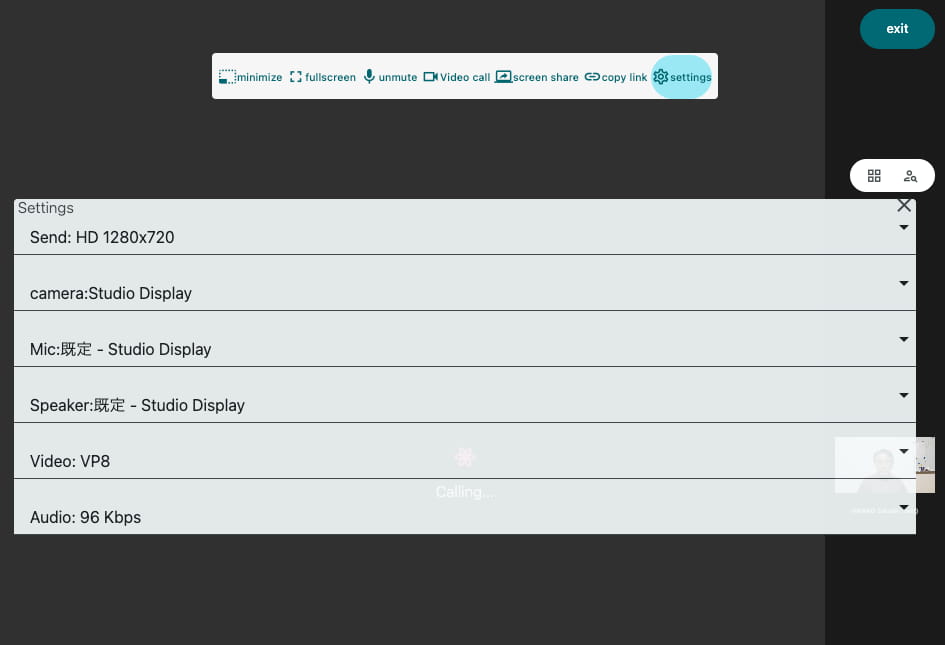
Configure settings such as video quality. Changes are saved on the device and will be used the next time.
To close the settings, press the clear button at the top right of the dialog.
- Camera
- Select the camera to use from the list. You can also use your smartphone's Continuity Camera.
- Microphone
- Selects the microphone to use.
- Speaker
- Selects the speaker to use.
- Sending video quality
-
This is the maximum quality sent to others; the actual quality may be lower depending on network conditions.
If there are many participants or if you are on a slow connection such as mobile data, selecting a lower quality will improve smoothness.
The default is 1280 × 720.
Use higher quality if you are on a high-performance network.
Some devices do not support all resolutions.
To send in high resolutions such as 4K or WQHD, you may need to select a high-performance codec in Send video codec below.
To change the quality of other participants’ video on your screen, ask them to change their sending video quality. - Priority for quality
- When network conditions are limited, Requestland prioritizes either the sending video quality (resolution), smoothness(frame rate), or a balanced combination of both. The default is Balance.
- Send video codec
- Selects the video codec (compression method) for sending video. From highest to lowest performance: VP9, VP8, H264. VP9 provides high-quality video with less bandwidth but requires a fast CPU. H264 has lower CPU usage but is not suitable for high-resolution video. The default is VP8.
- Send audio bitrate
- Selecting a higher bitrate improves audio quality. Selecting a lower bitrate allows more participants to join even on slower networks. The default is 96 Kbps.
- Reset to defaults
- Restores the settings to their default values.
- Statistics
- Shows the sending and receiving quality, frame rate, and other details for each participant.
Invite people outside your organization to a video meeting
To hold a video meeting with people who do not belong to your organization on Requestland or who are not registered users, tap the meeting screen and press link Copy Link in the settings menu. Alternatively, press “Copy Video Meeting Link” from the extended menu button more_horiz in a message session.
The following link has been copied to your clipboard. It includes your brand’s Land Domain Name and a random ID, so the person who receives it will feel that it is an invitation to a meeting from your brand. Please share it only with a small, trusted group and avoid inviting anonymous participants.
https://sakura-maison-0000-jp.request.land/?4k-video=bJeUAuMj6wQit094B
Participants can join the video meeting by opening the link at the same time or by clicking the Video Meeting button . (The above link will be converted to a normal link, and your Land ID will not be shown.)
Each message session comes with one video meeting. Therefore, generating a link within the same message session will always produce the same link. Generating a link in a different message session will create a different link.
For example, when holding a video meeting with a customer, you can create a separate message session for each customer and generate individual links for each session.
There is no limit to the number of message sessions, so the number of meeting rooms is also unlimited. However, if you use data beyond the free tier, you will need to enable a paid option.
Invited participants from outside your organization can only use the video meeting feature; they cannot access messages, Banban Board, or other functions.
Video meeting settings for message sessions
Every video meeting belongs to one of the message sessions within the current project.
Press “Message Session Settings” from the extended menu button more_horiz at the top right of a message session to open the settings screen.
- Disable link and renew
- If the link is leaked or sent by mistake, press this to invalidate the existing link and generate a new one. Anyone within the organization can perform this action.
- Video meeting link
- Even people without an account or users from other organizations can join the video meeting using this link.
- Restrict participants
- You can restrict video meeting participants to users within this organization only. If not restricted, anyone who knows the link can join the video meeting.
Security
The video meeting link includes your Land domain name and a random ID.
https://sakura-maison-0000-jp.request.land/?4k-video=bJeUAuMj6wQit094B
It is impossible to guess this videoID by chance, but if you share the link with unknown people or with many people, the following situations may occur. Please share it only with a small, trusted group and avoid inviting anonymous participants.
- While meeting with Person A, an unexpected Person B joined.
- Without your knowledge, other people used the link to start a get-together for drinks.
- After giving the link to someone you didn’t know well, it was passed on to others, and you didn’t realize that different people were joining.
You can invalidate the existing link and issue a new one using Invalidate and renew link above.
You can also prevent non-organization users from joining by using Restrict participants above.