- Support home
- Usages
- Basic usage and user settings
- Organization management
- Buy with requests
- Sell to requests
- Banban Board
- Banban Board Tutorial — Basics
- Banban Board Tutorial — Calculation
- Messages
- Video meeting
- Shared files
- OneShot Demo Video Recorder
- Appearance and branding
- Ban list
- Common
- FAQ
- Limitations and issues
- H-Market model
- Supported browsers
- Contact
- Subscribe to news updates
- Free and options
- Paid options
- Land domain names
- Sellers
- Banban Board
- Paid options
- Promotion materials
- Identity verification
- Legal
- Terms
- Privacy policy
- Logging setting
- SCT
- Content Creation Guidelines
Banban Board tutorial: Calculation
Dr. HIRANO Satoshi, Dr. AIKAWA Kazuki





- Create a wedding plan and manage tasks simply
- Practice exercises
- Usage hints
- Overview of the food budget plan
- Practice exercises
- Find the total amount using row operations
- Practice exercises
- Calculate smartly with selection rows and reference cards
- Practice exercises
- Usage hints
- Get totals with reference cards and multiplication operators
- Practice exercises
- Create estimates with reference cards referring to multiple rows
- Practice exercises
- To the couple
In life and work, there are many opportunities to manage what needs to be done, select items to purchase, and plan budgets. Additionally, in sales work, it would be wonderful if you could automatically calculate estimates while giving a beautiful presentation to clients.
Using "Wedding Planning" as a theme, let's learn how to manage simple tasks and perform cost calculations—which used to require tedious spreadsheet software—using Banban Board. You'll see how it can be done easily and enjoyably without entering formulas by creating very simple boards.
- Create a plan for the entire wedding and manage tasks simply.
- Simulate the budget by changing the combination of food and guests.
- Calculate an estimate using an invitation letter as an example.
These three boards are included in the demo list displayed before signing in, so you can actually try them out. They won't be saved on the server and will revert to their original state if you reload, so feel free to experiment. However, we strongly recommend signing in and creating them as your own boards. It's much more interesting that way.
Now, let's start with the overall wedding plan. We hope you also enjoy the "Shopping Ninja" columns.
Create a wedding plan and manage tasks simply
If you're planning a wedding, what are the "tasks" that need to be done? Where is the venue? Who will be invited? What kind of food will be served?
The task management here is a very simple form of project management, unlike reminders like "buy milk on the way home." Currently, complex functions such as entering deadlines are not available.
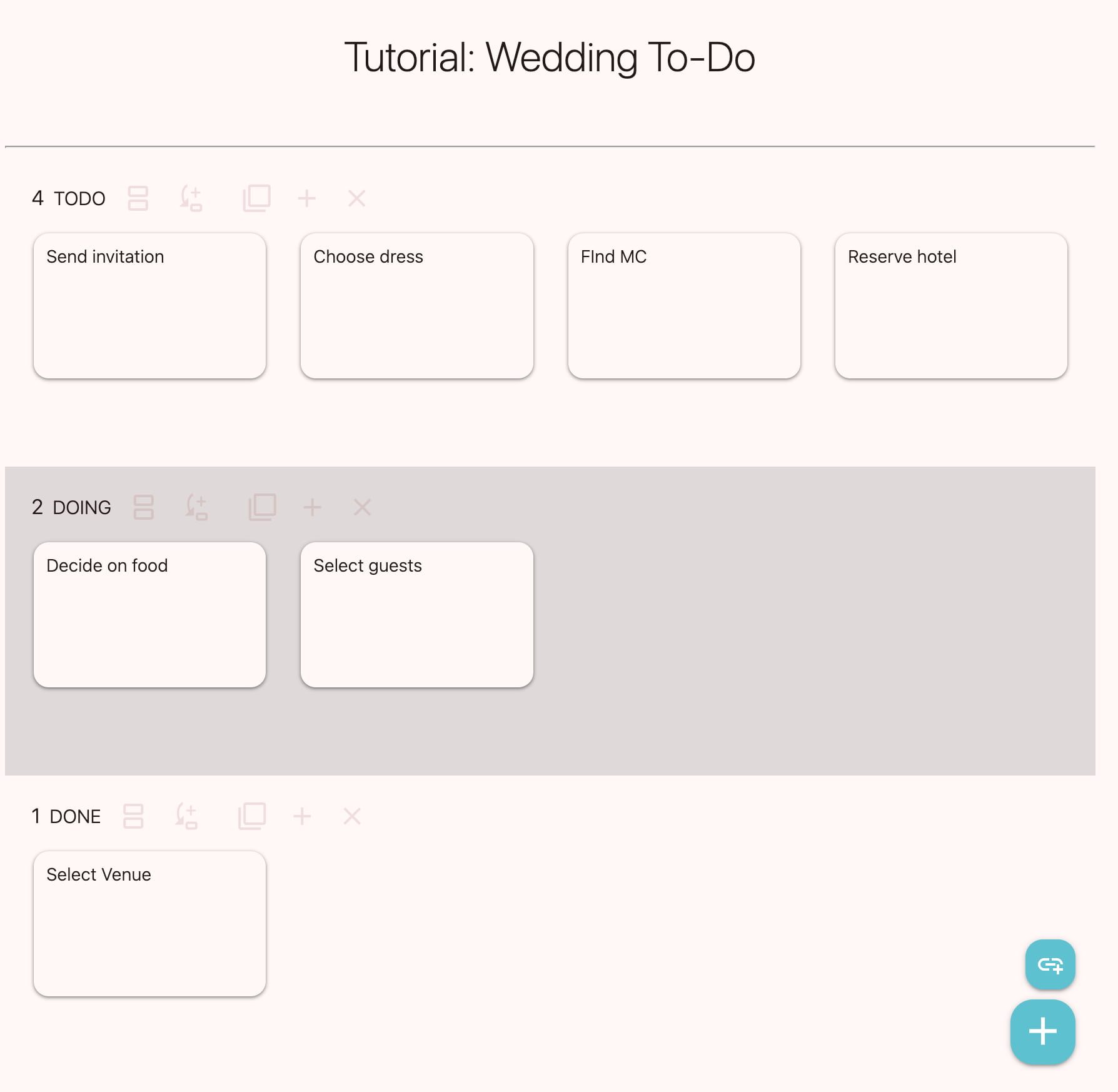
Figure 1 shows the "Tutorial: Wedding To-Do" board. Create a "TODO" row, a "DOING" row, and a "DONE" row, and add tasks such as "Choose dress" and "Select guests" as cards.
Then, move the cards down to the next row according to the progress of the preparation.
Practice exercises
- Open the "Tutorial: Wedding To-Do" board and try moving the "Decide on food" card from the "TODO" row to the "DOING" row. Tip: On a smartphone, press the card slightly firmly to move it. On a computer, place the cursor on the card and move it to the next row while holding down the left click.
- Try adding a task to the board. What other tasks might there be? Tip: Press the + button at the bottom right of the screen, select "Card," and enter the title when the new card opens. Observe the items that can be written on the card.
- Plan a project with a theme you like. What tasks are there, and in what order should they be arranged? Sign in, create a new board, and arrange the tasks. Tip: Refer to the board for Build Happy's wooden house.
Usage hints
If you put links to other boards in the cards, you can move between them easily. This creates a parent-child relationship between boards, such as an overall plan board and a detailed plan board for a part of it. For example, if you put a link to the Tutorial: Wedding Planning and Budget in the "Decide on food" card, you can move there just by tapping the link. To return, swipe right or press the browser's back button. As the development of Requestland progresses, the total amount of the child board will likely be reflected in the parent card.
As more cards are added to the board, it becomes harder to see the big picture. The size of the cards can be adjusted with the slider on the board. On a smartphone, you can also change the size of the cards by pinching the board with two fingers. It's a good idea to make them larger when creating cards and smaller when looking at the overall picture. You can also choose the shape of the cards in the board settings.
To move quickly within the board, use the row jump button menu_open at the top right.
Dr. Hirano’s Tips for Becoming a Shopping Ninja!
Should you trust online reviews? Reports suggest over 40% of Amazon reviews may be fake. NHK's shocking footage of a "fake review factory" is a wake-up call.
If possible, visit a physical store to see, hear, or taste the product. Learn from the staff and buy there. Even if it's a bit pricier than the online minimum, you're paying for peace of mind and the assurance that they will replace it immediately if there are any quality issues.
I remember being shocked when a local shop closed down a while ago. Shops cannot survive unless we use them. For example, many people, including myself, might try items in-store only to buy them online later. As shops disappear, it becomes inconvenient, jobs are lost, and the town declines.
There's a concept called the "Fallacy of Composition." Even if an individual action seems optimal, it can lead to collective failure. It's a cool term, so try using it with your friends!
If you can't go to a store, you face a choice: take a gamble and resell it if it fails, or invest in a higher-tier product known for its basic quality. It's your call.
Overview of the food budget plan
Next, let's start the task of deciding on the food. This is a budget plan for the catering.
Let's look at the final form of the board we are going to create. Figure 2 is the "Tutorial: Wedding Planning and Budget" board.
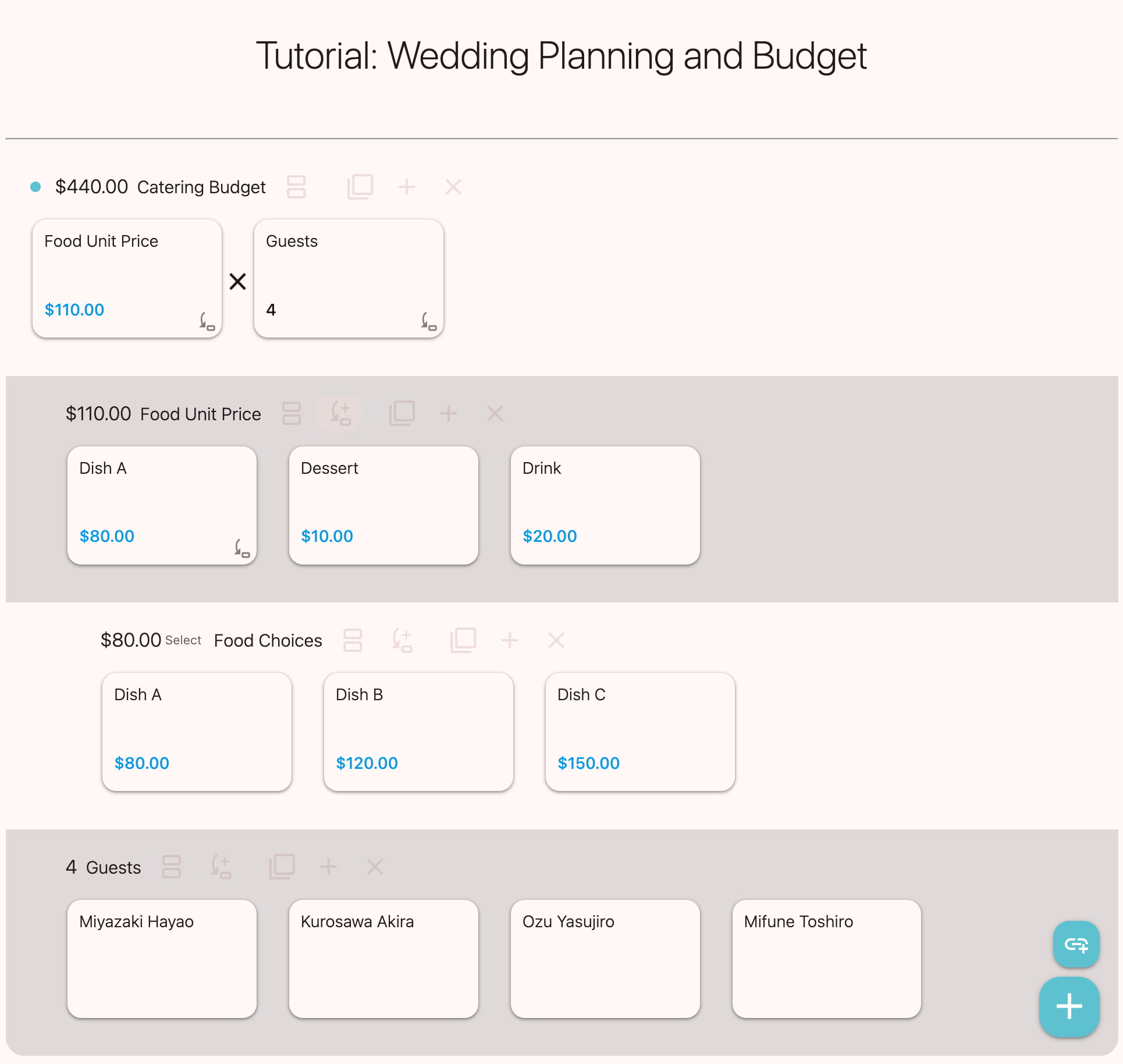
Open the board and try moving the cards. Since it's a demo, it will revert if you reload. To enhance the learning effect, we strongly recommend signing in and creating your own board as you go. We haven't provided a full walkthrough video because we want you to explore through trial and error. Please try it yourself and feel free to show it off by sharing your results on video sites!
The purpose of this budget plan is to select the dishes for the guests, choose the guests, and simulate the catering budget by increasing or decreasing the prices of dishes and the number of guests so that it fits within what you can afford. This can be applied to various types of shopping.
The first row in Figure 2 is the catering budget, showing that if you serve $110 worth of food and drinks to 4 guests, the total will be $440. The second row is the unit price of food per person, consisting of Dish A, drinks, and dessert.
The third row shows the food options, where one dish is selected from dishes A, B, and C. The fourth row is the guest list. Only titles are written on the cards for clarity, but when you actually use Banban Board, it's fun to add photos of the food and guests, which also makes it easier to reach an agreement among the planners.
With a board like this, if you try changing the types of food or increasing/decreasing the number of guests, the catering budget will change accordingly.
Practice exercises
- Tap the $10.00 part of the dessert, change the price to $8, and see that the food budget changes.
- Press the + button to increase the number of guests. How do the number of guests and the food budget change?
Simulations like this were often done with spreadsheet software, but creating formulas is difficult. It is particularly difficult to manage with photos of dishes and guests in a spreadsheet.
With Banban Board, tasks such as selecting items to buy, simulating purchase prices, and managing tasks and budgets can be done easily just by moving cards.
Requestland also has an easy-to-use free video meeting tool, so it's wonderful to be able to simulate combinations with other people while looking at photos. In sales work, it's convenient because you can calculate together with remote clients.
Compared to spreadsheet software, the calculation functions are limited. We are progressing with the development of features like relative references (as in spreadsheets), AI integration, and the ability to write code in JavaScript, so the possibilities will continue to grow.
Find the total amount using row operations
Now, let's start making the board from scratch. Press the + button in the board list to create a "Wedding Planning and Budget" board.
After creating the new board, first create a "Food Choices" row as shown in Figure 3, and add cards for Dish A, Dish B, and Dish C as options. You can enter these yourself, or add a page you found on the web into the board to create them automatically.
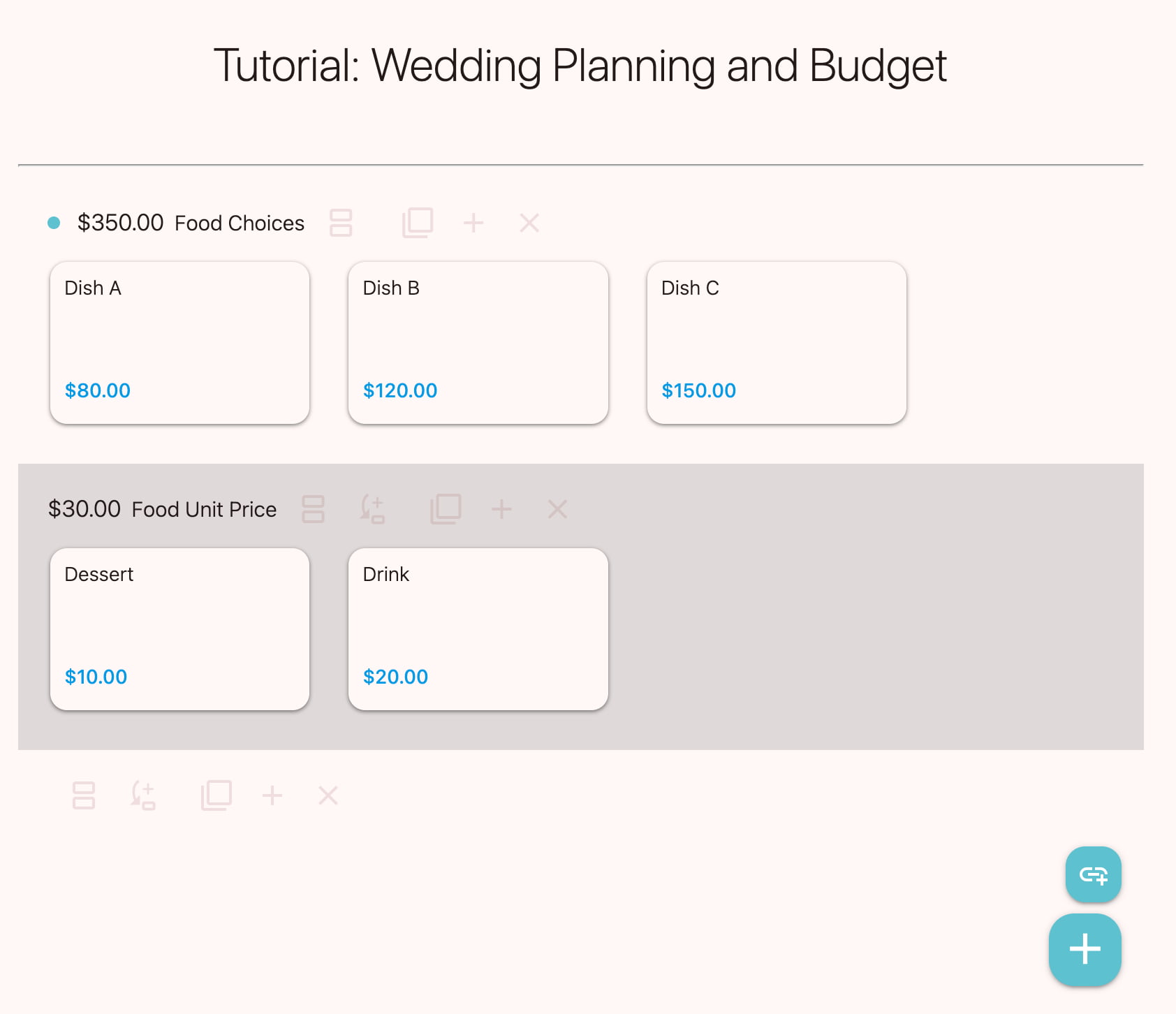
Create a "Food Unit Price" row and calculate the cost of food for one guest. First, put in a $20 drink card and a $10 dessert card. The value of the row becomes $30, which is $20 plus $10. In this way, when you arrange cards that include prices, calculations are performed automatically.
Here, some of you may have noticed something strange.
In the "Food Choices" row, the total amount of the food cards is displayed. Since you won't be ordering all the dishes, this amount is meaningless.
This is the result of a row operation, which calculates some value from the cards in the row. The default is "Auto," which performs a "Sum" of all card values, or "Count" the number of cards if no card has a value. You can calculate the total amount just by arranging cards, without having to enter tedious formulas like in a spreadsheet.
Next, let's choose one from the three food candidates. For example, move the Dish A card to the "Food Unit Price" row as shown in Figure 4. Then, the unit price for one person becomes $110. This is also the effect of a row operation.
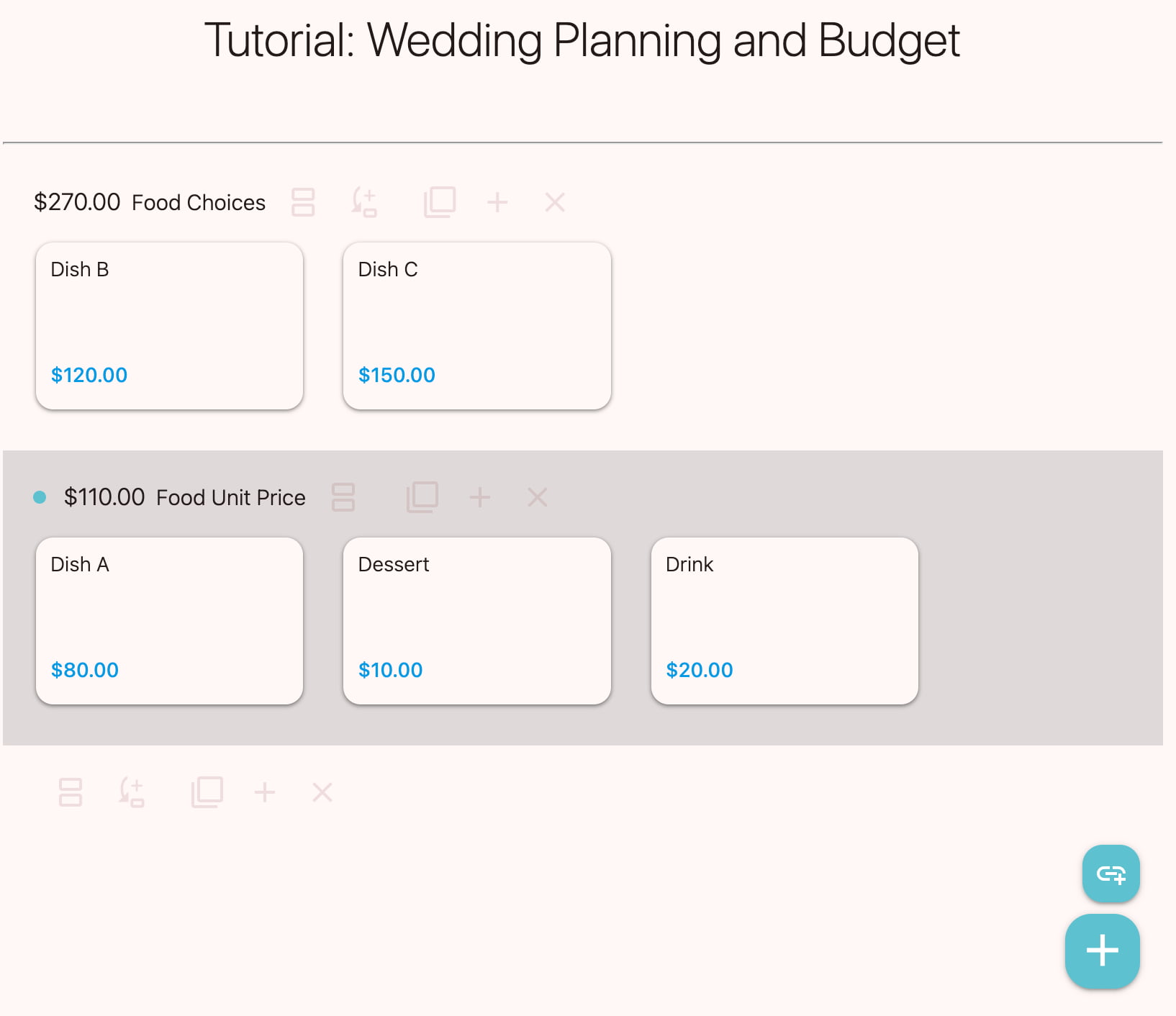
However, with this method, the Dish A card disappears from the "Food Choices" row, so it's no longer clear that Dish A was also an option. Let's move the Dish A card back to its original row.
Practice exercises
- Replace the food card in the "Food Unit Price" row with another food card from the "Food Choices" row and observe the effect of the row operation.
Dr. Hirano’s Tips for Becoming a Shopping Ninja!
For expensive products or services, always get multiple quotes. In construction, this is essential. Note that the effect is lost unless you explicitly mention you are "getting multiple quotes" to compare.
Prices usually reflect quality. If a provider is the cheapest, there's likely a reason—verify it before ordering.
Overdoing price negotiations can make things awkward. Sharing one seller's quote with others is generally legal for consumers if not confidential, but don't push sales reps so hard that they lose their passion. You don't want to lose an ally.
Also, companies are often connected. Sales reps of different companies might be friends. If company names are revealed, they might secretly agree to avoid competition, saying things like, "I'll let you have this one, so let me handle the next one." This is called illegal bid rigging or collusion (like a cartel), which prevents price competition and works against the buyer.
Calculate smartly with selection rows and reference cards
Let's get back to the problem: the Dish A card disappears from the "Food Choices" row. A better way is to select one dish while keeping all the food cards in the row and reflect that selection in the "Food Unit Price" row.
First, tap the total amount of the "Food Choices" row mentioned earlier, and select "Select" from the list as shown in Figure 5.
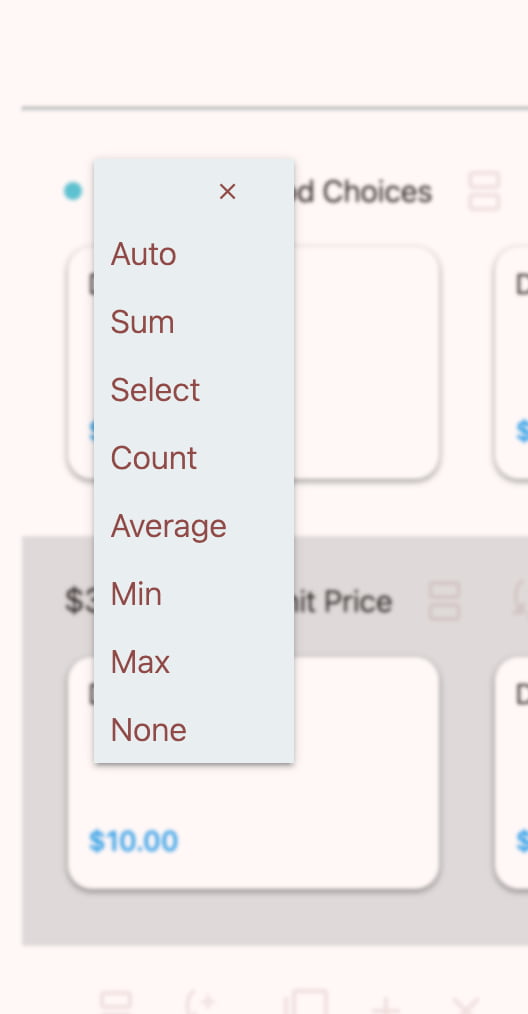
Then, the value of the leftmost card in that row is selected as the value for the row. To change the row's value, just move a different card to the left end. A row set to "Select" operation is called a selection row.
If you make that selection automatically reflect in the "Food Unit Price" row, choosing food becomes very easy, and the food cards won't disappear.
To do that, use a reference card. First, tap the background of the "Food Unit Price" row to put the board into edit mode. Anywhere will do. Then, the "Food Unit Price" row will be focused. The row with a small circle at the beginning is the focused row, and new cards will be added to this row. Tap the background of the row again to exit edit mode.

Next, press the "Ref card" button in the "Food Choices" row. Then, a reference card to this row is created and placed in the "Food Unit Price" row because the row is focused. As shown in Figure 6, a card is added to the "Food Unit Price" row, and the unit price becomes $110.
The reference card has an icon , so you can tell it's a reference card at a glance.
Practice exercises
- Try moving Dish B or Dish C to the leftmost position in the "Food Choices" row. Confirm that the value of the reference card automatically changes, and the value of the "Food Unit Price" row also changes. In other words, "a row reference card refers to a row" means using the value of the source row in the destination card.
Usage hints
When there are many cards in a row, it's difficult to decide which one should be at the left end, which is the best one for your purposes. Using the comparator allows you to compare them two at a time. When you press the comparator button splitscreen in the "Food Choices" row, two dishes are displayed (usually with photos), and you can swipe one away to keep the one you prefer. By repeating this, the dish you like best will end up as the leftmost card in the row.
Now, let's do a little experiment. As shown in Figure 7, try moving (dragging) the row titles with your finger or cursor to change the order of the "Food Choices" row and the "Food Unit Price" row.
The reference card remembers the reference target itself (not its relative position), so the calculation result doesn't change even if the position changes. This is another difference from spreadsheets.
Also, a small space is created at the beginning of the referenced row. In this way, "indentation" is added to the referenced rows, making the reference relationships somewhat visible. The indentation of rows referenced by reference cards within referenced rows... becomes deeper accordingly. Indentation can be disabled in the board settings settings.
Before proceeding, please place the "Food Unit Price" row at the top and the "Food Choices" row below it. Also, please place Dish A at the leftmost position. The "Food Unit Price" row should be $110.
Get totals with reference cards and multiplication operators
How much you can spend on one person's meal depends on the total amount for all the guests' food. Let's find that.
To decide on the number of people to invite, add a "Guests" row as shown in Figure 8. If there is an empty row, you can change the title by tapping the title area. If there isn't one, press the + button in any row to create an empty row, then hold and drag its title area to the bottom.
Then, try arranging cards for the guests you want to invite. In this example, let's say you are a famous movie star and you want to invite film directors.
As mentioned earlier, if no cards in a row have a numerical value, the value of the row becomes the number of cards (count). Here, it's the number of guests.
Now, let's find the total catering budget. It's easy using reference cards as shown in Figure 9.
Create a "Catering Budget" row at the very top. To do this, press the + button on the "Food Unit Price" row. An empty row is created.
The total catering budget is the unit price per person multiplied by the number of guests. You just need to create two reference cards and multiply them.
First, the "Food Unit Price" row was $110. Let's create a reference card to bring that to the "Catering Budget" row.
Tap the background of the "Catering Budget" row twice to focus it, and the focus mark appears. Press the "Row Reference Card" button on the "Food Unit Price" row. A reference card to the "Food Unit Price" row is created in the "Catering Budget" row.
In the same way, create a reference card for "Guests." While the focus is on the "Catering Budget" row, press the "Row Reference Card" button on the "Guests" row.
Then, as shown in Figure 8, the "Food Unit Price" reference card and the "Guests" reference card should be side-by-side, and a × (multiply) mark should have appeared automatically between them.
This × is called an operator. Try tapping it. You'll see that you can also choose operators like − (subtraction) and ÷ (division). The default operation between cards in a row is addition, and in that case, the + mark is not displayed. Multiplication and division are performed before addition and subtraction.
Now the catering budget is $440, which is $110 x 4.
Without having to enter tedious formulas like in spreadsheet software, the catering budget is automatically calculated using the reference cards. It seems like a different calculation principle from spreadsheets; what does that mean?
In a spreadsheet, you refer to cells. In this example, we referred to rows. In a spreadsheet, you cannot refer to the row itself. There is no such concept. In Banban Board, rows automatically perform operations based on the content of the cards, making it unnecessary to enter formulas. At this point, you cannot refer to individual cards. As development progresses, you'll be able to do more.
Practice exercises
- Try changing the selected dish or adding guests to see how the catering budget changes. When decreasing guests, you can move them to a row named "Guests?" below to return them at any time.
- Create a new board and plan a party with a theme you like. For example, how about a party where you invite many of your favorite musicians to enjoy music together?
Dr. Hirano’s Tips for Becoming a Shopping Ninja!
A word for those in sales or management.
When using Banban Board for sales presentations, preparing your cards in the bottom row beforehand makes the process smooth. Since the calculation logic can look like "magic" to buyers, a brief explanation helps. Practice your moves so you don't get flustered in front of customers.
In procurement, the risk of failure is scary. Usually, they'd start with a small test order to confirm their reliability before placing a large one. So, fulfilling even small orders quickly and sincerely can lead to great things.
Long-term constant customers are your most important clients, regardless of the size of their orders. However, one can never be certain when their needs might shift. Providing thoughtful suggestions on how to get the most value from your products will surely be appreciated.
If you are a business owner or manager, you can achieve revenue growth driven by economic revitalization. Raising employee wages revitalizes the community. Increasing the number of people who can afford your products is the most fundamental golden strategy.
Create estimates with reference cards referring to multiple rows
Let's create an estimate for multiple items using wedding invitations as an example. We'll calculate a subtotal from unit prices and quantities, then add sales tax.
First, let's see how it's done with current spreadsheet software.
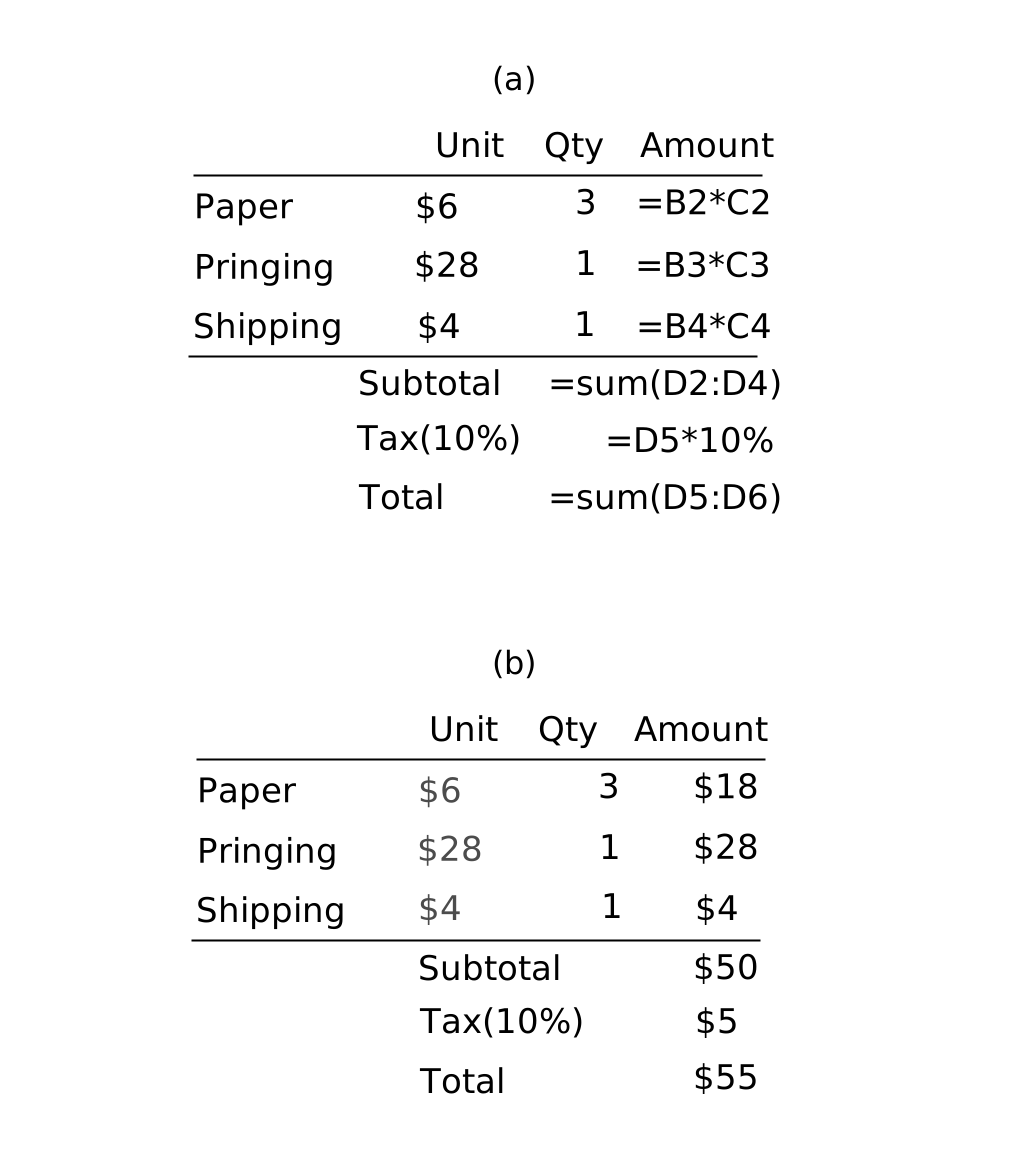
In a spreadsheet, to perform the calculation in (a) of Figure 11, you must enter a formula like an incantation as shown in (b). Creating formulas is difficult, and another major drawback is that you won't notice if there's a mistake in the formula. Furthermore, showing this table to a client doesn't evoke much of an image. Their eyes just go to the numbers, that is, cheap enough or not.
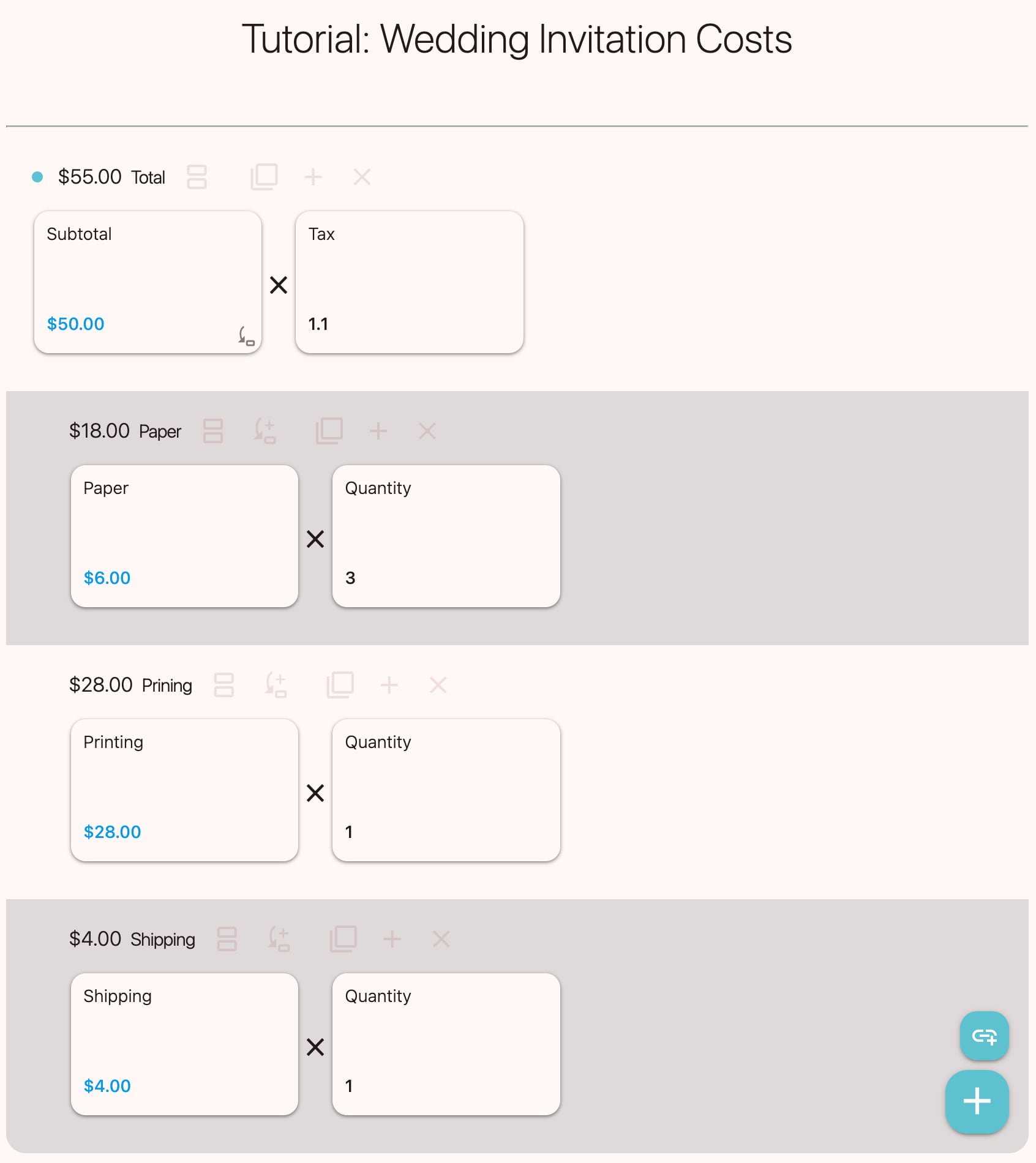
Now it's Banban Board's turn. If you can refer to multiple rows and find their total value, you'll be able to perform these calculations needed in daily life.
By moving cards to adjust prices and quantities, you can make purchases that fit your budget. For those in sales, making estimates in front of customers by moving cards with beautiful images saves the trouble of creating an estimate late at night after the meeting.
As shown in Figure 12, create a "Paper" row on a new board. Put in a $6 paper card and a quantity 3 card. To create a quantity card, press the + button at the bottom right of the board and select "Number card," or create a regular card and select "Number card" in edit mode. That automatically adds a multiplication.
Create a "Printing" row and put in a $28 printing card and a quantity 1 card.
Create a "Shipping" row and put in a $4 shipping card and a quantity 1 card.
Create a "Total" row at the top of the board, and while it is focused, press the + (plus) button at the bottom right and select "Ref card." You will then be prompted to select the target rows, so check "Paper," "Printing," and "Shipping." Then, press the "Done" button at the top right of the screen.
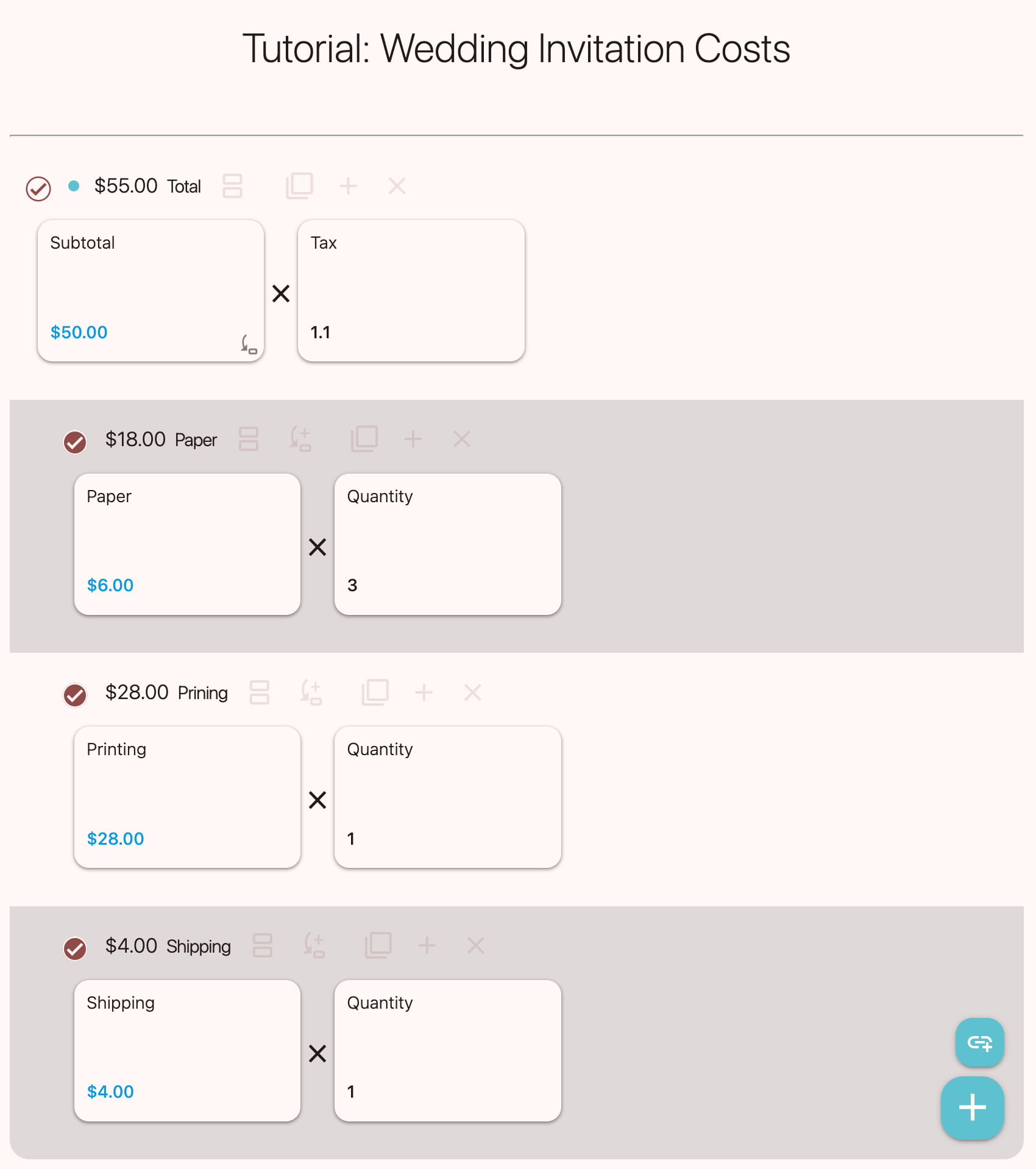
Then, a reference card named "Paper Printing Shipping" is created, and the total of $50 from each row should be displayed. Open the card and change the title to "Subtotal."
Since the subtotal is out, let's add sales tax to get the total amount. Simply multiply by the tax rate. Create a number card and enter your local tax rate such like 1.1. With that, the total should have become $55.
As another way, you could copy the subtotal card and multiply it by a 0.1 number card. Added to the subtotal card, this gives a total of $55.
Now you've done almost the same calculation as the spreadsheet in Figure 11.
By pressing the reference button on the reference card as shown in Figure 13, you can check or change the reference targets at any time.
Practice exercises
- Create a "Paper Type" row, arrange multiple cards with beautiful photos, and change it so that the selected card is referenced from the Paper card. Hint: This is the same relationship as the Food Choices and Food Unit Price learned in the previous chapter.
- Let's create a board to calculate the total for 3 apples at $1.20, 5 oranges at $0.80, and 4 bananas at $0.50. Hint: Create rows for apples, oranges, bananas, and a total row. In the total row, put reference cards that refer to the apple, orange, and banana rows.
- Think of two different ways to create a board that calculates the total for 3 apples at $1.20, 5 oranges at $0.80, and 4 bananas at $0.50. Hint 1: You can write a formula in the "Price" field of a card, so you can calculate the total with just one card. Hint 2: You can also arrange all cards in one row and use row operations to find the total.
- Edit the "Send invitations" card on the "Tutorial: Wedding To-Do" board and insert a link to the "Tutorial: Wedding Invitation Costs" board you just created. Does it jump just by tapping the bottom of the card? Hint: Demo pages are not saved, so connect your own boards after signing in. Links can be obtained from the browser's address bar or from "Share this page" under "Share this page, open QR code" in the user menu.
- On the "Tutorial: Wedding To-Do" board, it would be useful to know the overall budget. (Since referencing values between boards is not currently possible) Enter a temporary budget for each card and use the method of referencing multiple rows learned above to find the overall total. Hint: Add a row at the top and insert reference cards representing the total of each row.
- In the previous problem, it would be good to know both the budget and the actual amount spent. What should you do?
To the couple
This concludes the tutorial on wedding planning. Once the wedding is over, a long journey of married life begins.
Marriage is like a mirror.
In my thirty years of marriage, through many disagreements, I have learned this: my own shortcomings are reflected back at me through my partner. My strengths are reflected as well. Only compassion and patience can sustain married life over the long years.
I sincerely wish you both enjoy a long, long life together with peace of mind and passion.