- Support home
- Usages
- Basic usage and user settings
- Organization management
- Buy with requests
- Sell to requests
- Banban Board
- Banban Board Tutorial — Basics
- Banban Board Tutorial — Calculation
- Messages
- Video meeting
- Shared files
- OneShot Demo Video Recorder
- Appearance and branding
- Ban list
- Common
- FAQ
- Limitations and issues
- H-Market model
- Supported browsers
- Contact
- Subscribe to news updates
- Free and options
- Paid options
- Land domain names
- Sellers
- Banban Board
- Paid options
- Promotion materials
- Identity verification
- Legal
- Terms
- Privacy policy
- Logging setting
- SCT
- Content Creation Guidelines
Banban Board Tutorial — Basics
Dr. HIRANO Satoshi, Dr. AIKAWA Kazuki




- Let’s choose what to buy
- Choose combinations of multiple products
- Choose together with friends or family
- Coordinate outfits
- Think about ideas or stories
- Limitations
Let’s start by learning the basics of the Banban Board, along with some shopping tips.
Requestland has two ways to help you buy things: “Ask and buy what suits you” using Requests, and “Research and choose by yourself” using the Banban Board.
The Banban Board is a tool for comparing and selecting products. It is not an online shop itself. When you need something you're not familiar with or don't usually buy, it's hard to know which product is good — it feels like walking in the fog. In such cases, you research using search or AI, put product pages into the Banban Board, and compare them to choose “Which one fits my purpose the best?” That is the main use case.
The basic usage is simple.
- Put many product cards in a row.
- Move cards you like to a higher row and those you don't like to a lower row.
- Compare the cards in the top row and move the better ones further to the left.
Ultimately, the leftmost card in the top row is your choice.
There are many variations depending on what you want to do. Let's look at them in order. Also, in the Calculation Tutorial, you'll learn how to perform simple task management, budget planning, and estimate calculations.
Dr. Hirano’s Tips for Becoming a Shopping Ninja!
A few years ago, when I had some construction work done at my home, they offered me a 1,000 yen Amazon gift card if I wrote a review on Google Maps. I politely declined, but I noticed the company had over 100 positive reviews despite being newly established. This is a true story.
Later, when a problem occurred and I contacted them, they completely ignored me. I realized I had relied on biased Google Maps reviews and made a mistake.
Shopping has its tricks. I'll share what I've learned from my successes and failures to help you make better decisions.
Let’s choose what to buy
Let’s imagine buying something and create a Banban Board. What do you want right now? Here, we’ll assume you want to buy a toaster oven because “eating cold bread on weekend mornings feels dull.”
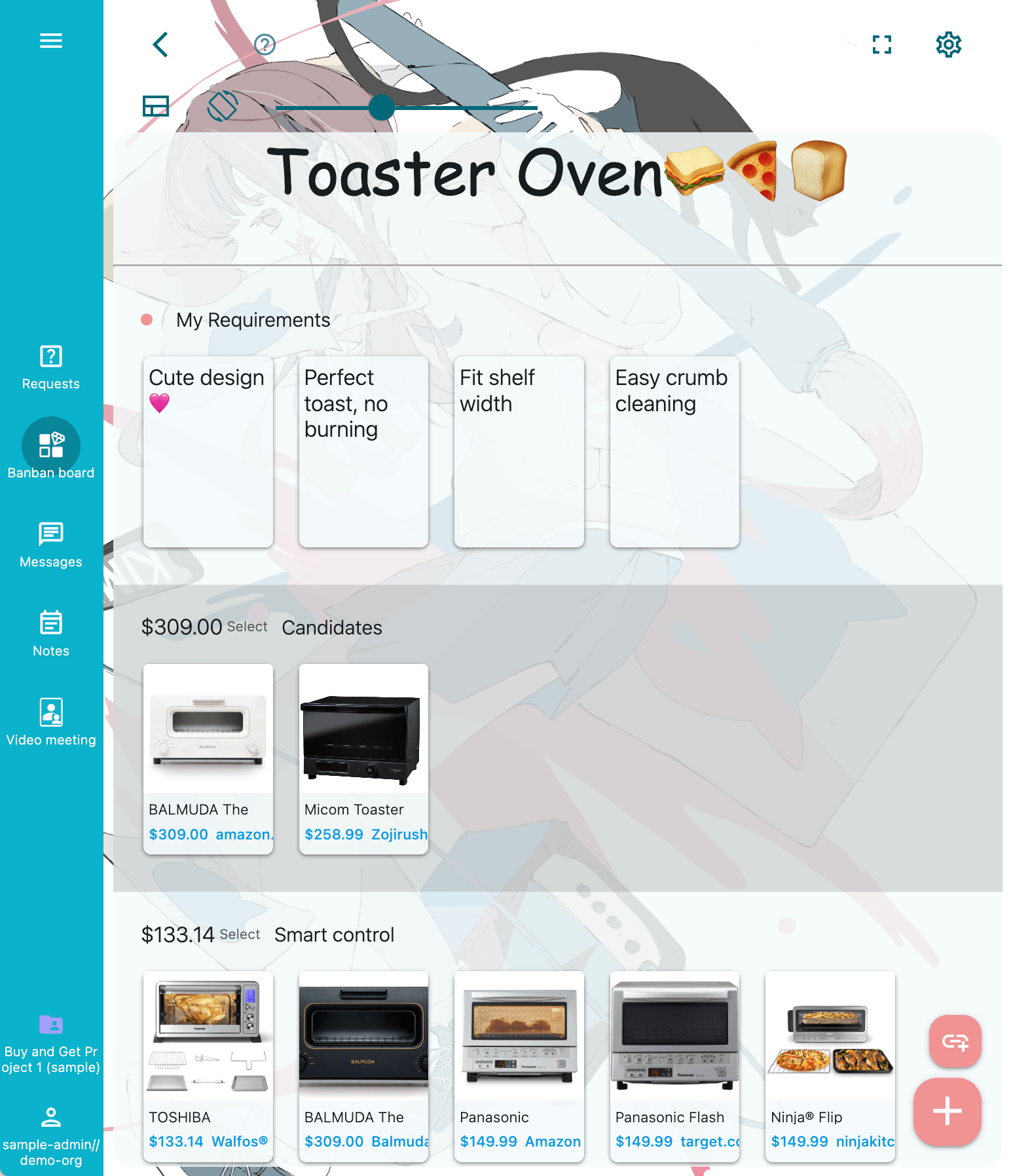
Create a board and think about conditions
First, press the Banban Board button on the menu.
Next, press the + button in the Banban Board list to create a new board. Enter the name of what you want in the title field and press Done on the top right — a blank board appears. The Banban Board has several rows, and you place cards inside them. You can add or remove rows.
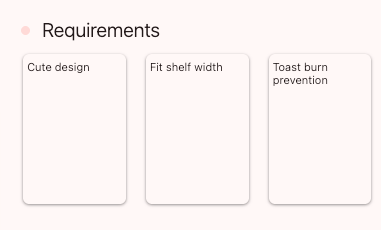
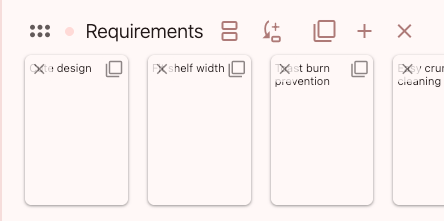
“What suits you” means what fits your conditions and budget. For example, when buying a toaster oven, your conditions might be: “Cute design,” “Width under X cm to fit the shelf,” “Microcontroller control that won’t burn bread,” “Easy crumb cleaning,” “Under $XX.X,” etc. Not required, but before researching products, it helps to make these conditions into cards and place them in the first row in order of priority.
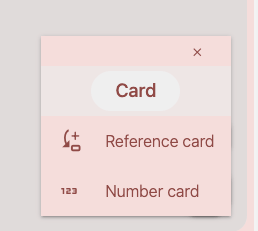
To create a new card, press the + button at the bottom right and choose “Card.” Enter the card title and press Done at the top right. On PC, you can press the + key to open a new card and save with CTRL-Enter — very fast card creation.


The row currently highlighted is the “focus row.” It has a small round mark at the start. When you press the + button to create a card, it is added to the focus row. To move focus to another row, tap the background of that row.
Arrange product cards
Search with your browser or AI and add cards for products you think look good. You can manually enter items into a new card, but there is also an automatic method.
On Android, just copy the link of the product page in the browser and return to Requestland. Even without pressing a button, a card is automatically created if the link is in the clipboard. Note that the board must be open.
On iPhone, copy the link of the product page in the browser, then press the “Add card from clipboard link” buttonadd_link at the bottom right of the board to create a card.
On PC, you can open the browser and Requestland side by side, then drag links into Banban Board to create cards quickly.
On iPad and Android also, you can use split view and drag links from the browser into Banban Board to create cards — very convenient.
About 70% of websites automatically provide title, price, and images. The price may be wrong, so always double-check.
For items with fluctuating prices, like hotels or airline tickets, info may not import. If automatic import fails, open the card and manually enter the title and price.
Open a card and take a look. Tap images to enlarge. Swipe to view the next image. Sometimes unwanted images appear, but it’s better than having none at the moment.
Tip: How to copy a page link
On iPhone: Use the Share button → Copy, or long-press a link → Copy Link.
On Android: Tap the address bar and press the copy buttoncopy, or long-press a link → Copy link address.
The key is to explore products widely across many brands and add lots of “might be good” cards to the board. It’s called the Banban Board because you add items banban — an onomatopoeia that means adding things quickly and in large numbers.
Move cards and compare
After adding many cards, start moving them. Move product cards that match conditions or your image of what you want upward, and further left within the same row.
Then the left side of the second row will show the best items in order — those that match your conditions most strongly. (We have condition cards in the top row.)
When moving a card on a smartphone, touch the card and wait a moment before dragging. Otherwise, the board will scroll.
Board editing
To add, delete, or copy a row, use the “Add row” button add, the “Copy row and cards” button filter_none, or the “delete row” button clear. These buttons are faint at first, but when you tap the row background, the board enters edit mode and they become clearly visible.
To move a row, hold and drag its title area.
Compare two at a time with the Comparator
The Comparator lets you place two cards from the row side by side and carefully compare them.
Press the Comparator button splitscreen. Two products will appear. Swipe one away to keep the one you prefer. Repeat, and the card you like most will end up as the leftmost card in the row.
Scroll down to view images and notes. You can also tap to open the card and edit the notes.
Even after you decide on the top choice, you can keep swiping to select the second and third. The Comparator is smart and avoids comparing pairs you've already judged, so it’s fast. It’s useful for gathering top candidates and making the final decision after a careful review.

Decide what to buy by prioritizing your conditions
Products with many features that meet many conditions tend to be more expensive. Within your budget, there may be no product that satisfies all your requirements. You may need to increase the budget or compromise by adjusting the priority of your condition cards.
It helps to write down advantages and disadvantages in the title or note section of each product card, such as which conditions it meets or fails to meet. You can also group by rows, like “microcontroller control.” Saving reviews you find (as long as they’re not fake) can also help.
As you revise your conditions realistically and adjust card order, your first choice will emerge.
To go to the website and purchase, open the card and tap the link at the top, or tap the site name at the bottom when the card is closed.
Dr. Hirano’s Tips for Becoming a Shopping Ninja!
If brand-new items exceed your budget, consider surplus stock. These are often guaranteed new items that are overproduced, out of season, or have minor box damage. Stores want to clear them quickly to save on storage costs, so look for "outlet" sections.
The next best choice is "like-new" items, such as display models, manufacturer-refurbished goods (like Apple Certified Refurbished), or registered cars with near-zero mileage used for dealer quotas. You can often negotiate lower prices for floor models in physical stores.
In contrast, second-hand items on flea market apps are sold because the seller wanted to get rid of them, and they come with no warranty. Check surplus stock first! Compare with professional used goods sites that offer warranties. Also, for smartphones and PCs, the OS support period is often short for older models.
When searching for items not found on major price comparison sites, beware of scam sites. If the price is extremely low or the domain name is suspicious, it's likely a fake or low-quality product. Stay away!
Selecting combinations of multiple products
Place the cards of the products you like on the board.
Rearrange the cards so that the first combination appears in a row and the second combination appears in the next row.
The total amount for each row is shown, allowing you to compare the total cost of each combination.
Press the copy button content_copy on the top-right of a card to duplicate it.
Rearrange the cards to decide which combination you want to purchase. Once you decide, press the link on the card to go to the website and buy it.
Choosing with friends and family
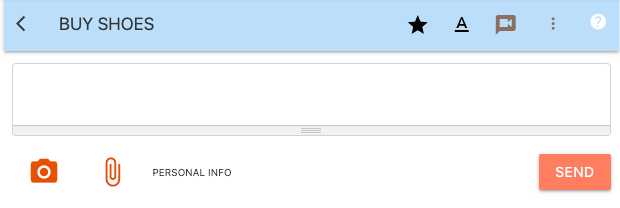
Invite your friends to your organization, or create a new organization and invite them there.
Open your request project, then open “Messages” from the project menu.
Press the + button to create a new message session and open it.
Press the Banban Board button during a message session to switch to the Banban Board. Press the message button chat to return to the message session.
Press the video button in the Banban Board to start a video meeting. During a video meeting, pressing the minimize button close_fullscreen closes the video so you can continue using the Banban Board while listening to audio only.
Dr. Hirano’s Tips for Becoming a Shopping Ninja!
Many products are differentiated into high-tier and low-tier models. A new low-tier model rarely outperforms an older high-tier one in basic quality. Choosing a used flagship model (like speakers, amps, or cars) often brings more lasting satisfaction. Unless many years have passed, entry-level models rarely beat older top-tier ones in terms of texture or performance.
Product prices scale with quality and features. "Quality" means the basics: sound, image, speed. "Features" are often marketing fluff used by only 20% of users. Focus on basic quality for higher satisfaction.
The easiest way to find products that meet your needs is to write them in a Request and let sellers come to you with proposals. If you want to buy cheaper, you might suggest, "I'll buy three at once, how about this price?"
Coordinating outfits
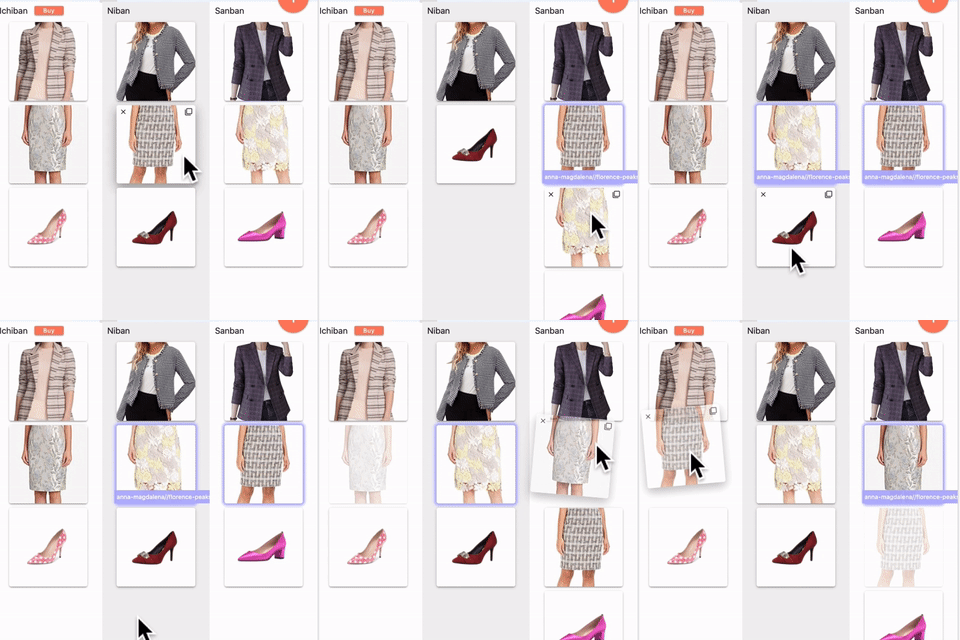
Press the vertical/horizontal toggle button screen_rotation to switch to vertical layout.
Place tops on the upper row and bottoms on the lower row to create your outfit combinations.
Create different combinations in each row and compare them as you decide.
Dr. Hirano’s Tips for Becoming a Shopping Ninja!
No matter how much you want something, you can't buy it without money. By carefully searching for lower-ranked products and shops, and buying locally if possible, you give more sellers and producers a chance to earn. When their wages increase, local consumption grows, your company's sales improve, and eventually, your own salary may increase. Creating this "virtuous cycle" is a major goal of the Banban Board.
Please look carefully for "hidden gems."
Creating ideas and stories
The Banban Board is a powerful tool for brainstorming ideas. Switching cards to square or rectangular shapes without images allows more cards to fit on the screen. Open the board settings settings and select square or rectangular cards.
Card space is limited, so long titles may not be fully displayed. If you want to show more text, open the settings button settings in the upper right of the board and turn on “Break words anywhere”.
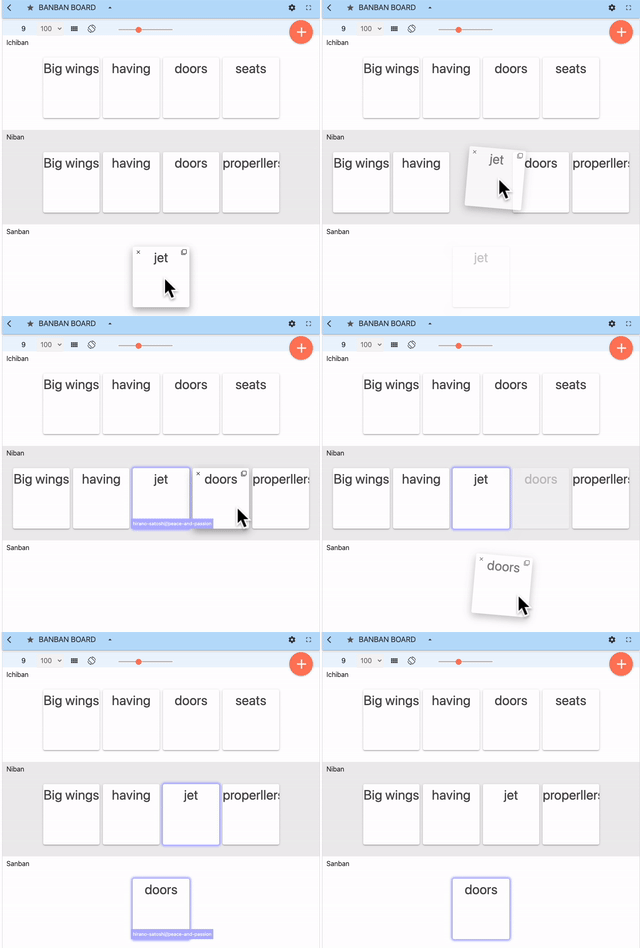
Suppose you want to compare two slightly different stories.
Place the cards for Story A in Row 1, and the cards for Story B in Row 2.
You can copy a card by clicking the copy button content_copy in the upper-right corner of the card.
This method can also be used for tasks such as choosing titles, reviewing patent claims, and creating video storyboards.
Limitations
Currently, the Banban Board does not have an "Undo" function. We recommend creating a "Trash" row at the bottom of the board and moving cards there if you want to delete them. The same applies to deleting rows. When making significant changes to a card, you might want to create a copy and keep it in the Trash row.
Copying an entire board is also not yet supported. You can move cards to a new board one by one by copying each card and selecting "Change Board" in the card edit screen.