- Support home
- Usages
- Basic usage and user settings
- Organization management
- Buy with requests
- Sell to requests
- Banban Board
- Banban Board Tutorial — Basics
- Banban Board Tutorial — Calculation
- Messages
- Video meeting
- Shared files
- OneShot Demo Video Recorder
- Appearance and branding
- Ban list
- Common
- FAQ
- Limitations and issues
- H-Market model
- Supported browsers
- Contact
- Subscribe to news updates
- Free and options
- Paid options
- Land domain names
- Sellers
- Banban Board
- Paid options
- Promotion materials
- Identity verification
- Legal
- Terms
- Privacy policy
- Logging setting
- SCT
- Content Creation Guidelines
Large text and images
Messages for home and office
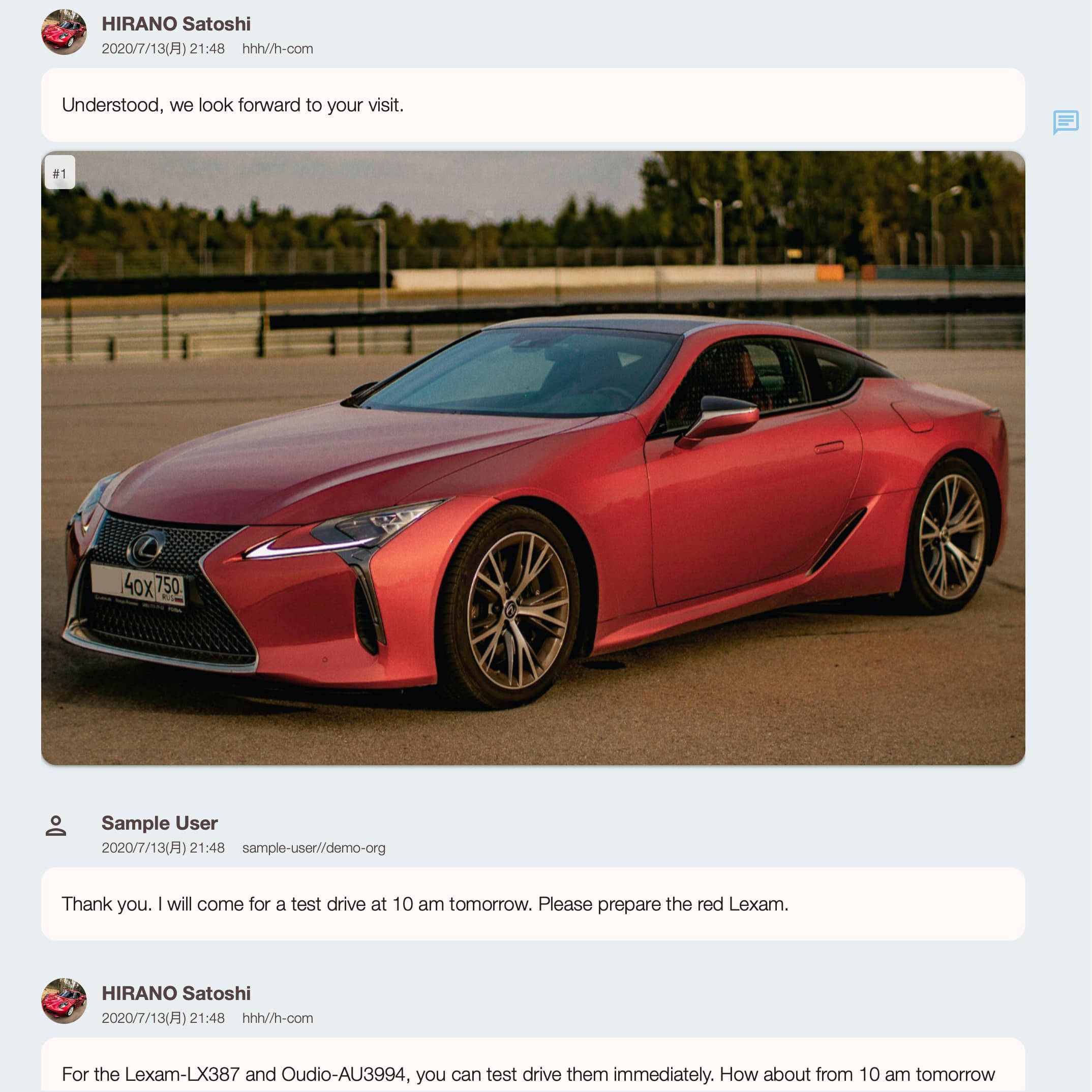
Large text and photos for easy viewing.
Not chat-style, making it well-received for business use.
No external messages, ensuring safety.
Features
- The large text and photos make it easy for people of all ages to use.
- No dangerous external messages can reach you, and you won’t accidentally send confidential information outside. It is a messaging system designed for use within homes and offices.
- Unlike direct messages on social networks, you won’t get distracted and start browsing social media, saving time.
- Because it doesn’t use chat-style speech bubbles, it is well received for business use. You can write long messages with rich expression.
- With powerful web clipping, even pages that break in other apps can be copied correctly.
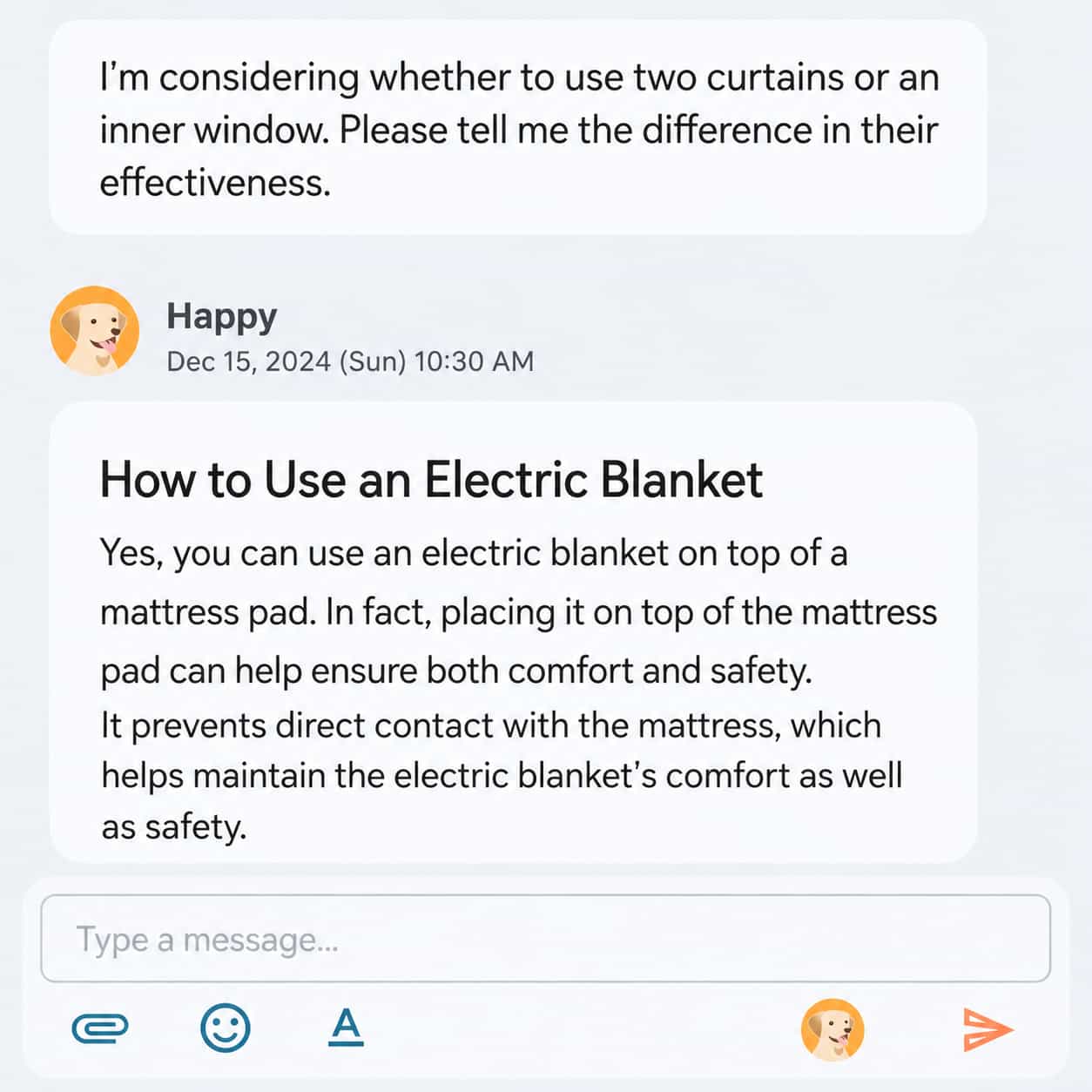
- You can also ask Happy, the ChatGPT-based AI dog, for suggestions.
- No monthly or per-user fees — just low, usage-based fees with a free tier.
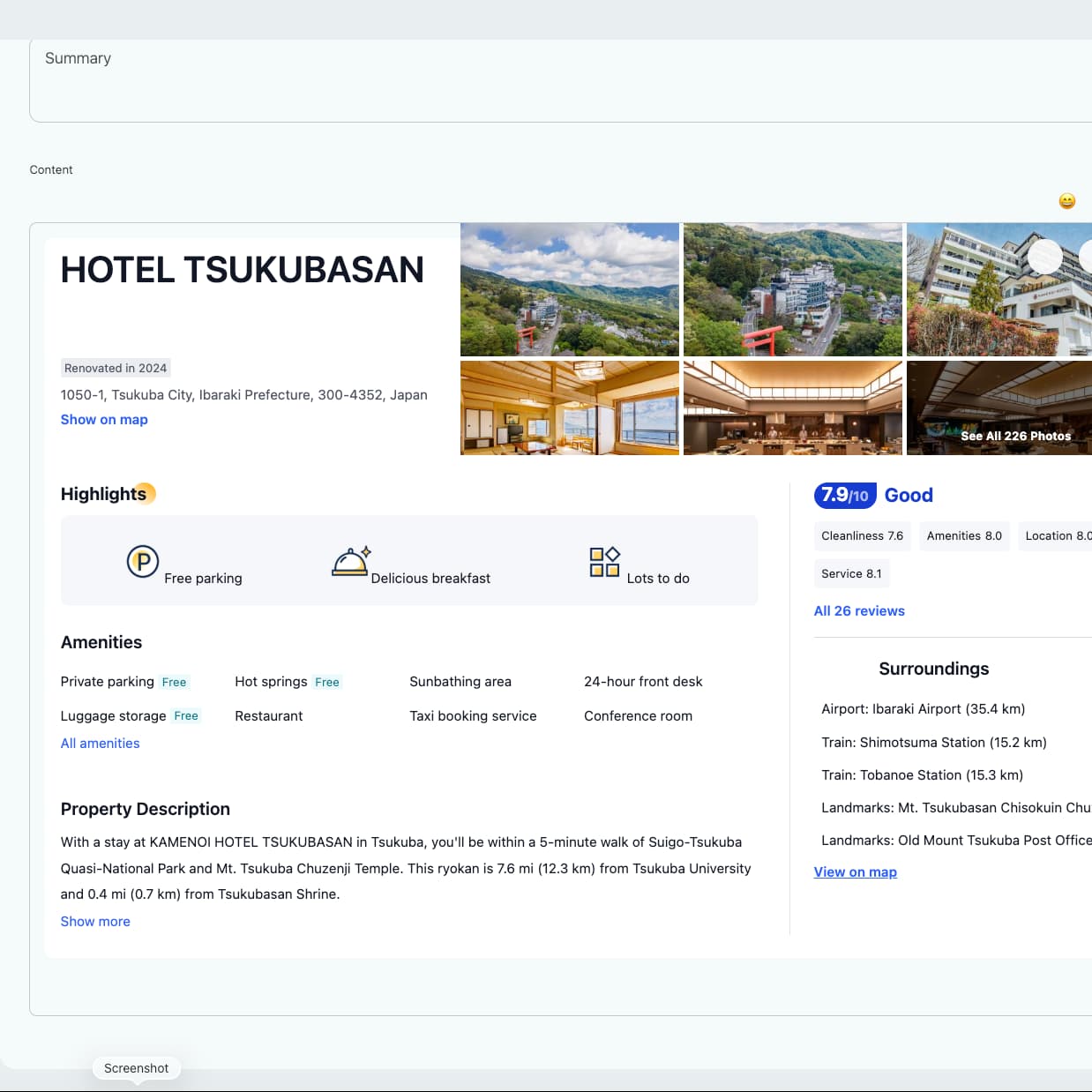 Web clipping with stable formatting
- What messages are
- How to use
- Formatting and editing
- Send files
- Web clipping
- Delete messages
- Receive messages
- Video meetings
- Open Banban Board
- Change the logo image beside your name
- Extended menu for sessions
- Message session settings
- When you delete a message by mistake
- Confidentiality and restrictions
What messages are
You can exchange text, emojis, images, and videos just like in chat or email, and you can also use video meetings and the Banban Board. Happy, the AI dog, can also join the conversation.
In Requestland, a series of messages is called a message session. It has the same meaning as a thread or chat room.
There are the following types of message sessions:
- In-house sessions
- Sessions within an organization, where only users of that organization can participate.
- Transaction sessions
- Sessions for discussions and negotiations between the buyer who wrote the request and the selected sellers. Users from both organizations can participate.
When a message is posted, a notification is sent to users who have notifications enabled. All organization users can read and write, so the recipients of notifications do not have exclusive access rights.
For safety and peace of mind, you cannot exchange messages with arbitrary organizations, but video meetings are possible as described later.
How to use
Press chat Messages in the project menu, or open the subview and press chat Messages to display the list of message sessions. Use the + button to create a new In-house session or select an existing session.
You can delete a session from its edit button.
Messages are shown so newer messages appear lower. When you open a session that has unread messages, Requestland opens the oldest unread message by default, so you can review new messages in order by moving downward from there.
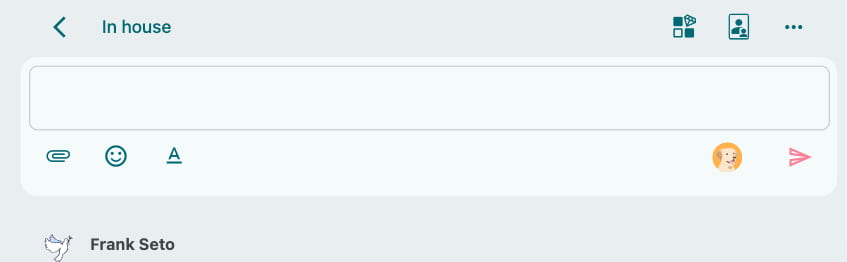
Enter a message and press the send button send to send it to other users. Press the Happy button  and Happy, the AI dog, will reply.
If you press Happy’s button in a session that contains images, he will fall asleep with a “ZZZ...”.
If you move to another screen while typing, your unfinished text will be restored when you return to the session.
Formatting and editing
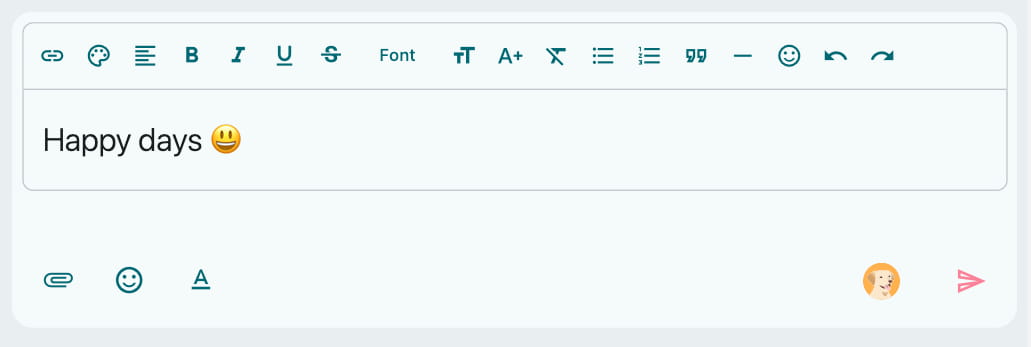
Press the formatting button text_format at the lower-left corner of the input area to open the formatting panel. There you can edit text size, color, and more.
Currently, you cannot insert images directly into a message. Please use Send a file instead.
Send files
Press the attachment File button at the bottom-left of the input area to attach images, videos, or files in the following ways. Attached images are displayed large below the message.
- Send photo/video from your device
- Photos and files are uploaded to the project’s shared files, and the uploaded items are shown in the message.
- Send from shared files in Requestland
- Select an image from the project’s shared files and attach it to the message.
- Send photo/video link
- Images are displayed directly from links on other sites. Because the photos or files are not uploaded to the server, the images will no longer appear if they are removed from the source site.
Web clipping
You can copy and paste product pages or reviews you find on the web.
When you paste content, and when you tap a pasted block, the following buttons appear:
- Make editable
- Enables editing. If you do not press this button, the block can be moved as a single unit.
- Plain text
- Pastes the content as plain text.
You can also paste images and videos. However, because Requestland does not store copies of them, they will no longer be visible if the original files are removed from the source site.
Delete messages
Press “Delete message” from the message’s extended menu more_horiz.
Even after deletion, the message remains in the logs for a certain period, so others can still view it.
Messages cannot currently be edited.
Receive messages
If update notifications are enabled in the project settings, an update notification arrives when a new message arrives. Depending on your settings, you can also receive it as a banner notification or email notification.
Opening from the update notification or banner notification displays that in-house session.
Messages also have an unread badge. The unread badge does not disappear while the session is open, so tap it to clear it.
If there are many unread badges, you can clear them all by selecting "Clear all unread badges" from the extended menu button more_horiz at the top right of the session.
You can add flags (flag) to individual messages to keep messages you want to review later or filter messages by flag. Flags are stored as update notification information, so when the update notification is deleted, the flags attached to that message are also deleted.
Unread badges and flags are independent for each user account. Marking a message as read or changing flags does not affect other users in the organization.
If the paid option is off, update notifications are removed after one week, whether they are unread or read. If the paid option is on, update notifications are kept indefinitely. When an update notification is deleted, the corresponding unread badge and flags are also deleted.
If you turn off update notifications in the project settings, neither update notifications nor unread badges will be shown.
Video meetings
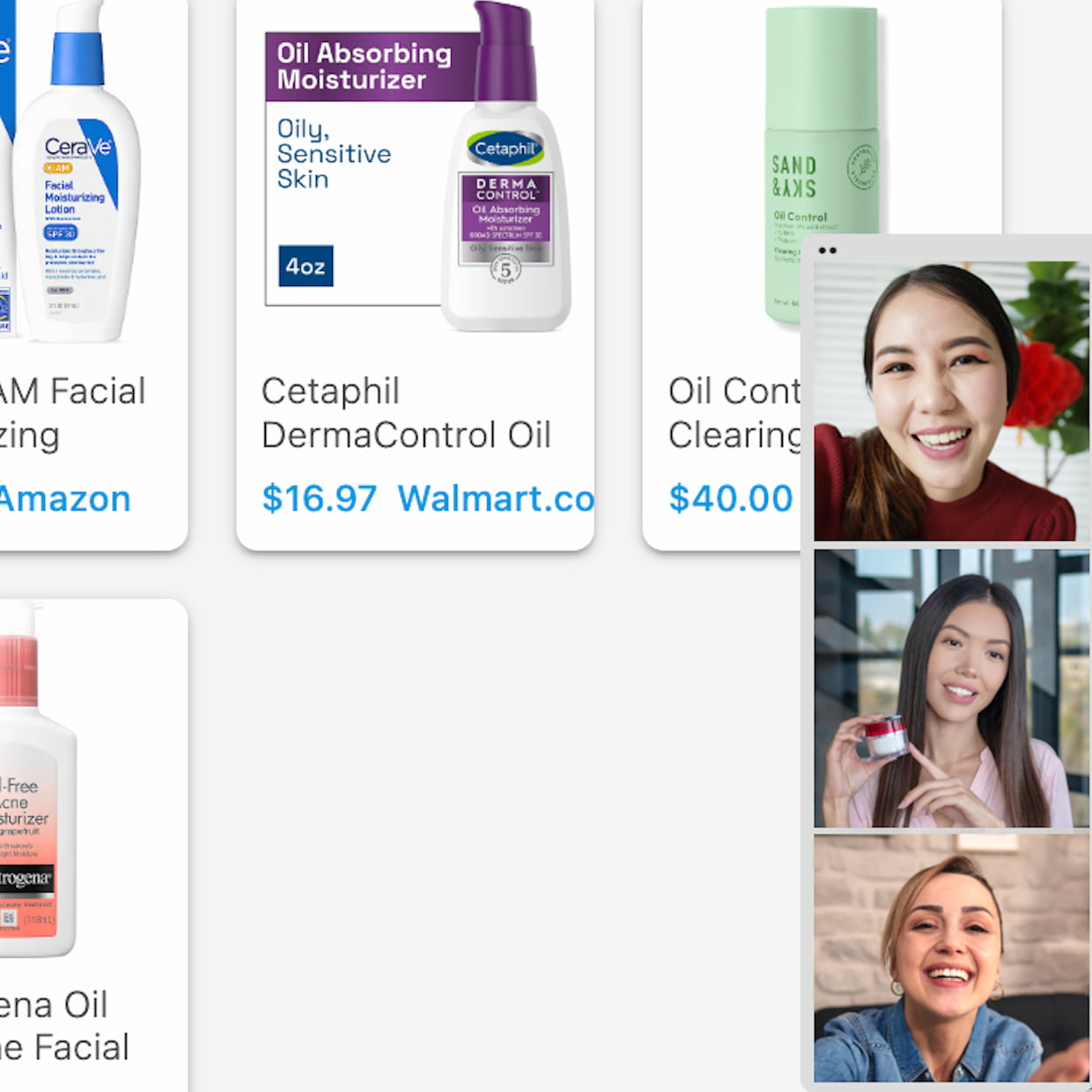
Press the video meeting button videocam at the top of the session to start a video meeting.
You can also exchange text messages during the meeting.
By sending the meeting link to others, users outside the organization or even those without user registration can join. Press “Copy the video meeting link” in the extended menu button more_horiz at the top right and share the link.
However, message exchanges are limited to users within the organization.
Open Banban Board
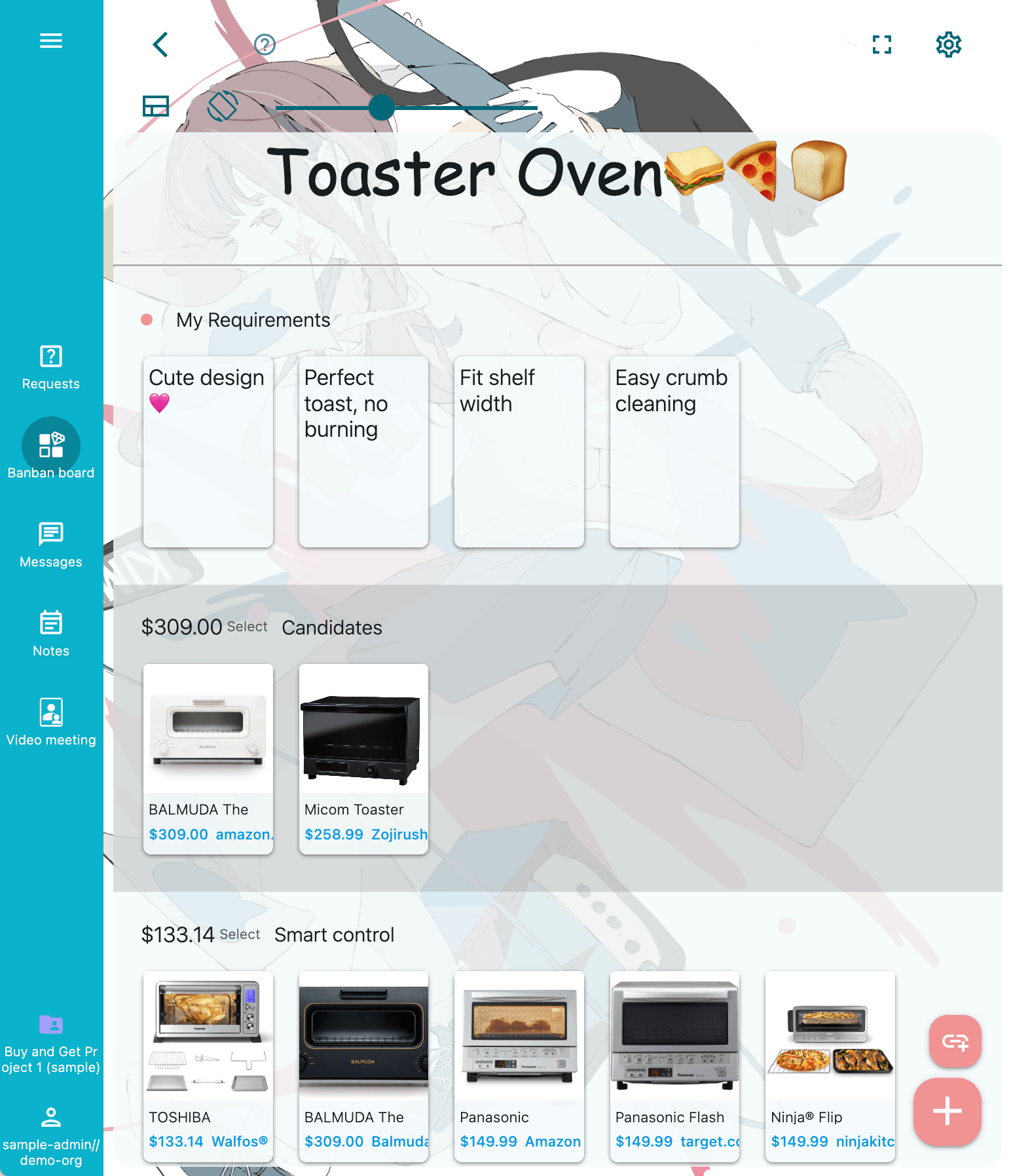
Press the Banban Board button at the top right of the input area to quickly open the Banban Board linked to that in-house session. This is convenient when switching back and forth between multiple tools.
Change the logo image beside your name
The logo image displayed next to your username can be changed from the profile screen. You can set it to your own photo or your organization’s logo.
See the user public profile page.
Extended menu for sessions
The extended menu button more_horiz at the top right of the session provides the following options:
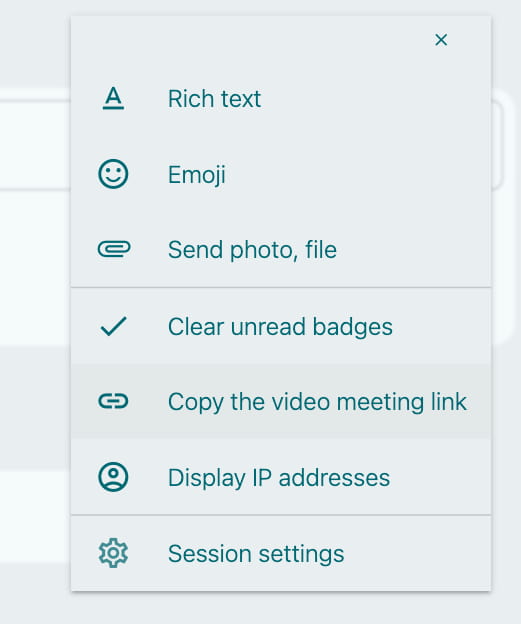
- Clear all unread badges
- Deletes all unread badges without confirmation.
- Copy the video meeting link
- See Invite people outside your organization to a video meeting.
- Display IP addresses
- Displays the IP address of the sender’s device for each message. This is useful, for example, when reporting fraud or threats in a request-related session. Messages in Requestland cannot be altered, so they retain evidentiary value. Also, the fact that IP addresses are visible helps deter malicious behavior. Note that email headers generally include the sender’s IP address as well.
- Session settings
- See Message session settings.
Message session settings
Press “Session settings” from the extended menu button more_horiz at the top right to open the settings screen.
- Session title
- Change the title of the session.
- Video meeting
- See Video meeting settings.
- Delete message session
- Deletes the session. Even after deletion, it remains in the logs for a certain period and can still be viewed by others.
When settings are saved, the session moves to the top of the session list.
When you delete a message by mistake
Sometimes you may type a long text and accidentally delete the message.
Unfortunately, it cannot be restored. However, if the input and deletion occurred recently, the data may still remain in the logs. Copy the text from there and recreate the message.
Confidentiality and restrictions
In-house messages are for internal use only, so they cannot be viewed by external users.
However, although data is encrypted both in transit and on the server, it is not protected with end-to-end encryption like Signal. Do not use it for highly confidential information.
Even when used only within the organization, sending content that violates the Ban list or the Terms and conditions of use is strictly forbidden.
To prevent misuse, fraud, criminal activity, or self-harm, data (including messages and Banban Boards), whether public or private, may be inspected by AI. If terms of use are violated, usage suspension, data deletion, or human review may occur when necessary. The AI used (OpenAI Moderation API and harmful-content detection) does not use transmitted data for model training. If this type of inspection is unsuitable or if higher privacy protection is required, do not use the service.