- Support home
- Usages
- Basic usage and user settings
- Organization management
- Buy with requests
- Sell to requests
- Banban Board
- Banban Board Tutorial — Basics
- Banban Board Tutorial — Calculation
- Messages
- Video meeting
- Shared files
- OneShot Demo Video Recorder
- Appearance and branding
- Ban list
- Common
- FAQ
- Limitations and issues
- H-Market model
- Supported browsers
- Contact
- Subscribe to news updates
- Free and options
- Paid options
- Land domain names
- Sellers
- Banban Board
- Paid options
- Promotion materials
- Identity verification
- Legal
- Terms
- Privacy policy
- Logging setting
- SCT
- Content Creation Guidelines
Simple shared files
for home and office
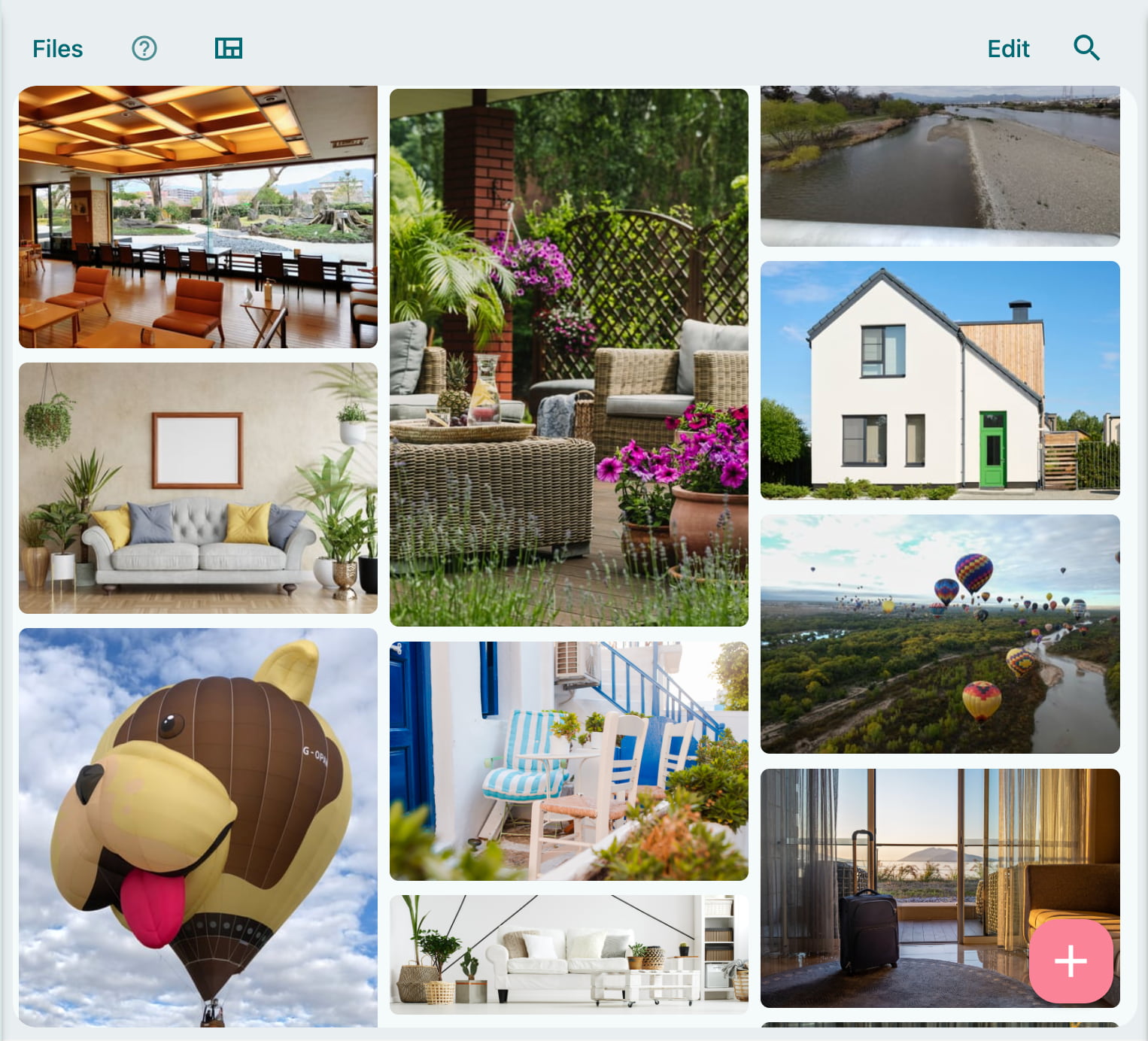
Share files uploaded to Requestland within your home or office.
You can also publish individual files externally.
Features
A simple sharing function for storing images, videos, and files attached to messages and sharing them within your organization.
Individual files can also be published externally.
You can crop and adjust the brightness of captured images.
Data and backups are stored across two or more continents.
No monthly or per-user fees — just low, usage-based fees with a free tier.
This is not suitable for general file sharing such as storing important files or collaborative document editing. Please use OS-level file sharing services like Google Drive or iCloud. If you store important data in Shared Files, be sure to keep a copy elsewhere.
Upload shared files
In Requestland, the feature for uploading images, videos, PDFs, and other files for sharing within your organization is called Shared Files. Uploaded files may also be referred to as shared files.
To upload to Shared Files, use the following methods:
- Attach to a message or request
-
In a message, request, or note, select “Send photo/video or file from device,” then choose Camera, Video, or your device’s photo library. Capture an image or video with the camera, or select a file from the OS photo library.
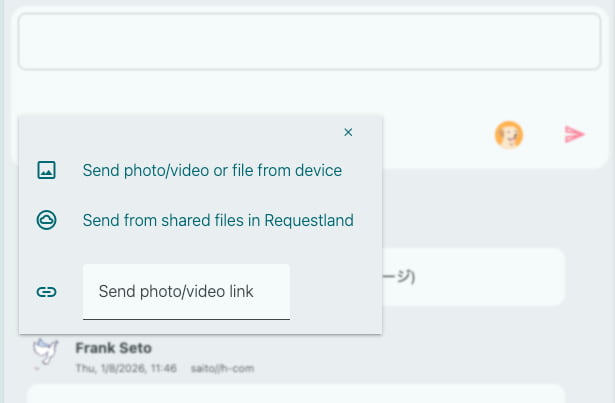 Press the attachment button in a message
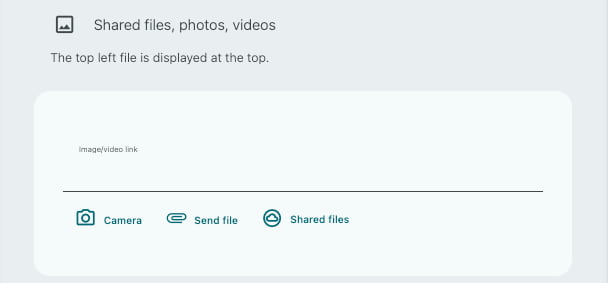 File selection in a note
- Upload directly to the Shared File List
- Press the + button in the Shared File List and capture an image or select a file using Camera, Video, or your device’s photo library. You can also drag one or more existing files directly into the list.
When uploading an image file, the brightness, crop, and orientation adjustment screen will open. Adjust as needed and press “Done.”
The uploaded image becomes part of Shared Files and can be used from other notes as well.
Uploaded files cannot be edited. Uploading a file with the same name does not overwrite the existing one; it is saved as a separate file. If you need to update the contents, delete the original file and upload a new one. In that case, the public link will change.
If an image exceeds 2560 pixels in width, it will be reduced to 2560 pixels. The maximum file size is 1GB; larger files will produce an upload error.
Image and video formats are not converted. For example, HEIC remains HEIC and WebM remains WebM. Depending on the format, some browsers or devices may not be able to display or play them.
Files and backups are stored in three or more geographically distant locations, typically across three continents.
Image adjustments and reductions cannot be undone. If you want to keep the original image, please save it yourself before uploading.
Even if files are used only within your organization, you must not upload any images, videos, or files that violate the Ban list or the Terms and conditions of use. There are stricter limitations than ordinary freedom of expression. For example, copyrighted manga or anime owned by others, adult content, and similar materials cannot be uploaded. Copying newspaper articles for internal sharing also violates copyright law.
Display images, videos, or shared files in messages or notes
To display files stored in Shared Files in messages, notes, or requests, press “Send from shared files in Requestland” and select a file from the list that appears.
The Shared File List shows only the files in the current project. If you want to display files from across the entire organization, press the search button search in the Shared File List and enable “All items in your organization” before searching.
Use the shared file list
Press the menu button and select photo_library Shared Files, Photos from the project menu to display the Shared File List.
The Shared File List has two views: view_quilt image list view and table_chart table view, which you can switch between.
Image list view
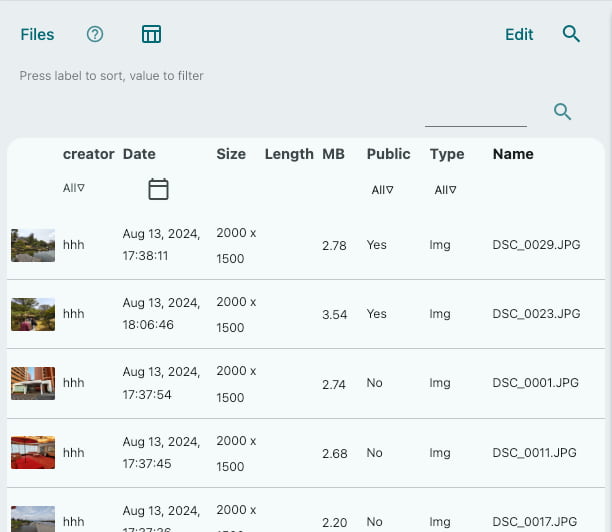 Table view
In table view, click a column header to sort in ascending or descending order. Click a value in the table to display only rows with that value. Clicking multiple values performs an AND search. Searching by search text strings is very resource-intensive for the server, so please use table values for searching whenever possible.
The Shared File List displays only files from the current project. To view files from across the organization, press the search button search in the Shared File List and enable “All items in your organization” before searching.
Unlike messages, the Shared File List does not update automatically with notifications. To refresh it, reopen the list, press the title “Files,” or pull down on the list (Pull to refresh).
Delete files
Press the edit button to select multiple files and delete them at once. Deleted files cannot be restored.
Shared Files cannot be deleted during the log retention period. To delete files after the retention period, open Shared Files from the organization menu, sort by creation date, and delete files whose retention period has expired.
If you delete a project, its files are moved under the organization.
Use the file viewer
Tap a file in the Shared File List to open the file viewer, where you can perform actions such as delete Delete, download Download, and Publish.
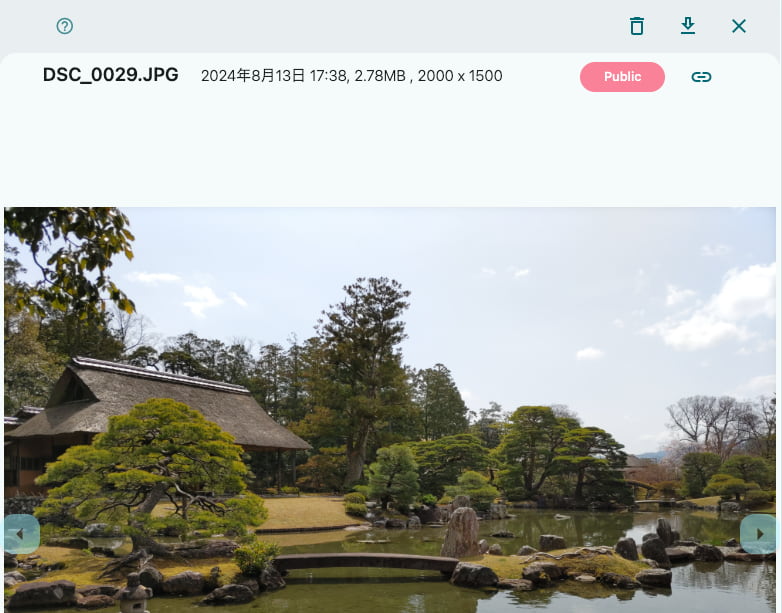
Press arrow_left or arrow_right to navigate to the previous or next image.
Adjust image files
When uploading an image file, you can adjust brightness, crop, and orientation.
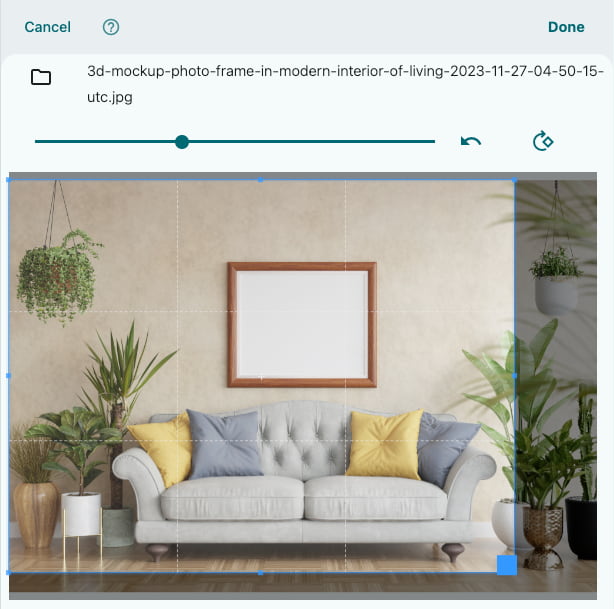
To crop an image, move the handles displayed over the image to create the desired shape, then press Done. On smartphones, the browser’s “back” action may be triggered, so hold the handles carefully.
Image adjustments or reductions cannot be undone. If you want to keep the original image, please save it yourself before uploading.
Publish files
Tap a file in the Shared File List to open the file viewer, where the top-right corner shows whether the file is “Private” or “Public.”
To publish a file, press “Private.” Press the link copy button link to copy a permanent public link to the clipboard. Anyone who knows the link can access the file. There is no feature to list all published files publicly on the internet, like on MyTube.
Also, attaching a file to a request or Doumo will make the file public.
You cannot publish images, videos, or files that violate the Ban list or Terms and conditions of use. There are stricter limitations than ordinary freedom of expression. For example, copyrighted manga, anime, or adult content cannot be published.
It may take some time for a link to become invalid after making a published file private or deleting it.
File security
Links to display private files in messages are temporary links that grant permission to open the file for a limited time to organization users or authorized users. Be careful not to share these links with third parties, as they can access the images or files.
Temporary links are valid for up to 3 days to avoid reloading large images or videos each time a message session is opened. During this time, files may remain in cache. Separately, if a shared file is set to “Public,” you can copy a permanent public link.
Fees
For fees, see Free use and paid options.
Shared file usage is calculated per organization and can be checked under “Optional features & usage” in the organization settings.
If usage exceeds the free quota, additional uploads will be disabled. In that case, enable a paid option. Billing is pay-as-you-go per month based on file storage used, so you can start with a very small amount.